
Foreman’s Kiosk on Zurel Pro
If your crew members are required to sign in at a client’s job site using the Zurel Pro app, you can make the sign-in process much easier by using the Foreman’s Kiosk on Zurel Pro.
For you to access and use the kiosks, make sure:
- Your business’s Zurel app is connected with the client’s Zurel app.
- Your client has labeled you as a Crew Lead.
- You have signed in at the job site where you want to use the kiosk to manage the
Once these conditions are met, you are ready to start using the kiosk.
To open the kiosk, open the Our Crew Dashboard of the Site Visits Log by selecting Site Visits Log > Our Crew.
Our Crew Dashboard
The dashboard lists the sites where your crew members are signed in. Only the sites that are accessible to you are listed here. Select the site entry from the list to open the site’s
Site Log
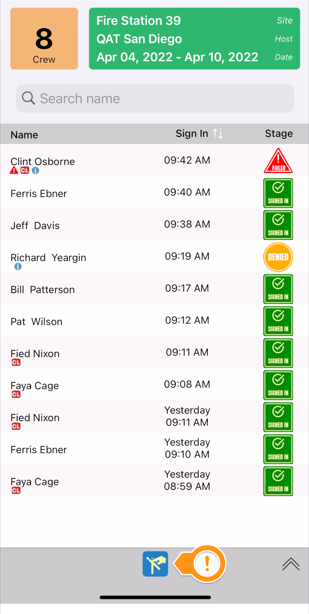
The Site Log lists all the crew members from your organization who have signed in at the job site. Find the kiosk icon on the toolbar at the bottom of the screen and tap on it to open the Foreman’s Kiosk for the site. If the kiosk is grayed out, it is likely because you have not signed in at the job site or have not been designated as a Crew Lead by the host.
Foreman’s Kiosk
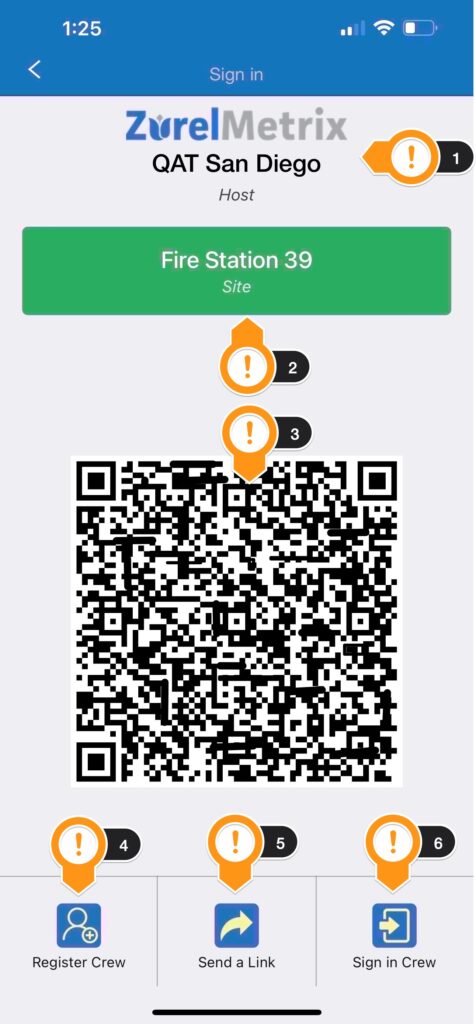
On top of the kiosk is the information about the host of the site (item A). Next (item B ) is the name of the site. Prominently displayed in the middle of the kiosk is the QR code (item C) of the site. You can have your crew member scan this QR code to sign in at the job site.
The site kiosk includes the following elements as labeled on the diagram above.
- Host: The name and logo (when available) of the host organization.
- Site Name: The name of the job site. The background is color-coded uniquely for each site.
- Site QR Code: Prominently displayed in the middle of the kiosk is the QR code of the site. You can have your crew members use their smartphones to scan this QR code and sign in at the job site.
- Register Crew: This lets you register your crew member at the host’s job site. This button may be inactive if you are not allowed to register a crew member from the Foreman’s Portal. When active, tapping on this button launches the Register a New Crew interface (see below)
- Send a Link: This lets you send a sign-in link to crew members. This button may be inactive if this function is not available to you. When active, tapping on this button launches the Send a Sign-in Link interface (see below).
- Sign in Crew: This lets you manually sign in a crew member using your Zurel Pro app. This button may be inactive if this function is not available to you. When active, tapping on this button launches the Sign in a Crew Member interface (see below).
Register a New Crew
This interface is launched when you select Register Crew on the Foreman’s Kioks. It consists of the following elements.
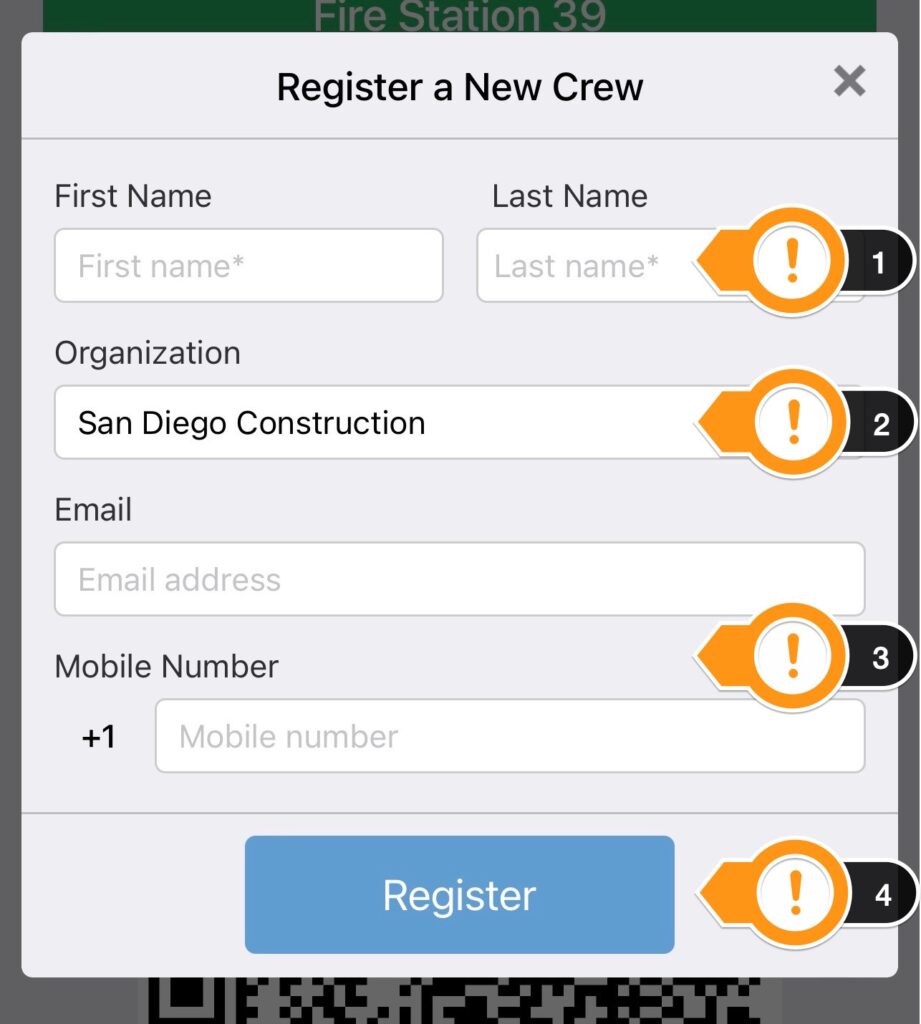
- First & Last Name: The first and last names of the crew member. Keep in mind that the names are not required to be unique. If there are crew members with duplicate names, make sure to distinguish them by registering with a unique email address or phone number for each.
- Organization: This information is pre-selected based on your organization and cannot be changed.
- Email, Mobile Number: Based on the host, none, one, or both of the information may be mandatory. However, when entered, this information needs to be unique. If the system finds another user with the same contact information, the crew member will not get registered, and you will be informed about it.
The contact information is used to uniquely identify crew members when they sign in using their smartphones. - Register: Tap on this button to register the crew member.
Send a Link
This interface is launched when you select the Send a Link button on Foreman’s Kioks. It allows you to send a sign-in link to crew members for them to open the link and sign in using their smartphones, but without having to scan the site’s QR code.
It lists the names of your crew members who are registered with the host. The list may seem very short as it launches with only a few names. Make sure to scroll down the list to see more names.
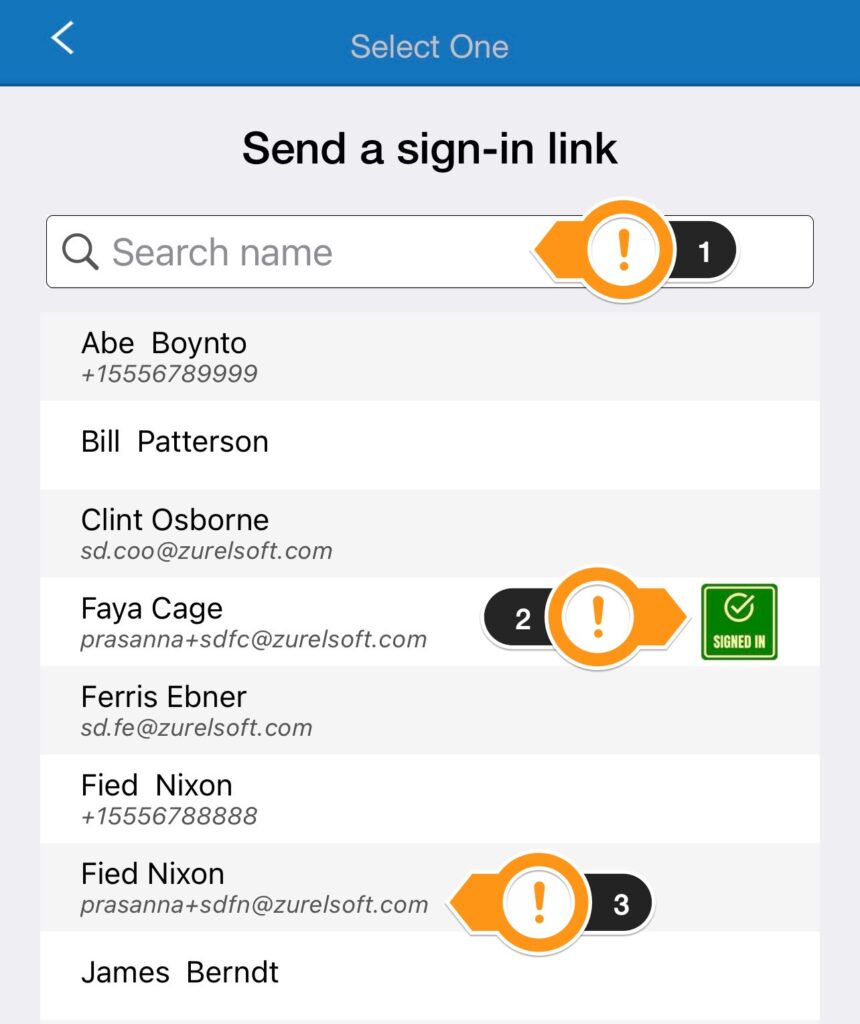
- Search name: If you do not find the name of your crew member who is already registered, search for it by the first or the last name.
- Signed In: The crew members who have already signed in at the job site (or tried to sign in but failed/denied) are indicated by the logo representing their sign-in status. You may select them as well.
- Contact Information: The contact information, when available, is also displayed and can be used to uniquely identify duplicate names.
Once you find the crew member, select the name to launch the interface where you can specify the email address where you can send the link, and tap the Send button to send the link.
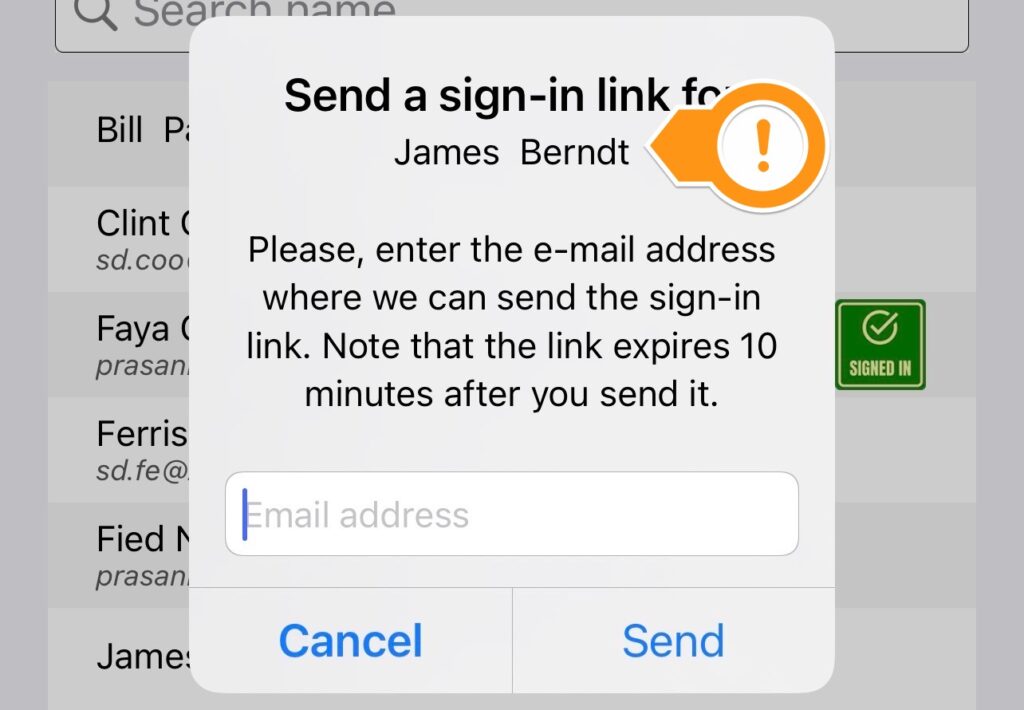
Please note that the link is meant to be for use by the crew members you select. However, anyone who receives the link can sign in as select crew members. So, please, make sure to send the link to the correct recipient. As a precaution against unwanted sign-ins, the link expires 10 minutes after it is sent.
Sign in as a Crew Member
This interface is launched when you select the Sign in as a Crew Member button on the Foreman’s Kioks. It allows you to manually sign in crew members using your Zurel Pro app.
It lists the names of your crew members who are registered with the host. The list may seem very short as it launches with only a few names. Make sure to scroll down to see more names.
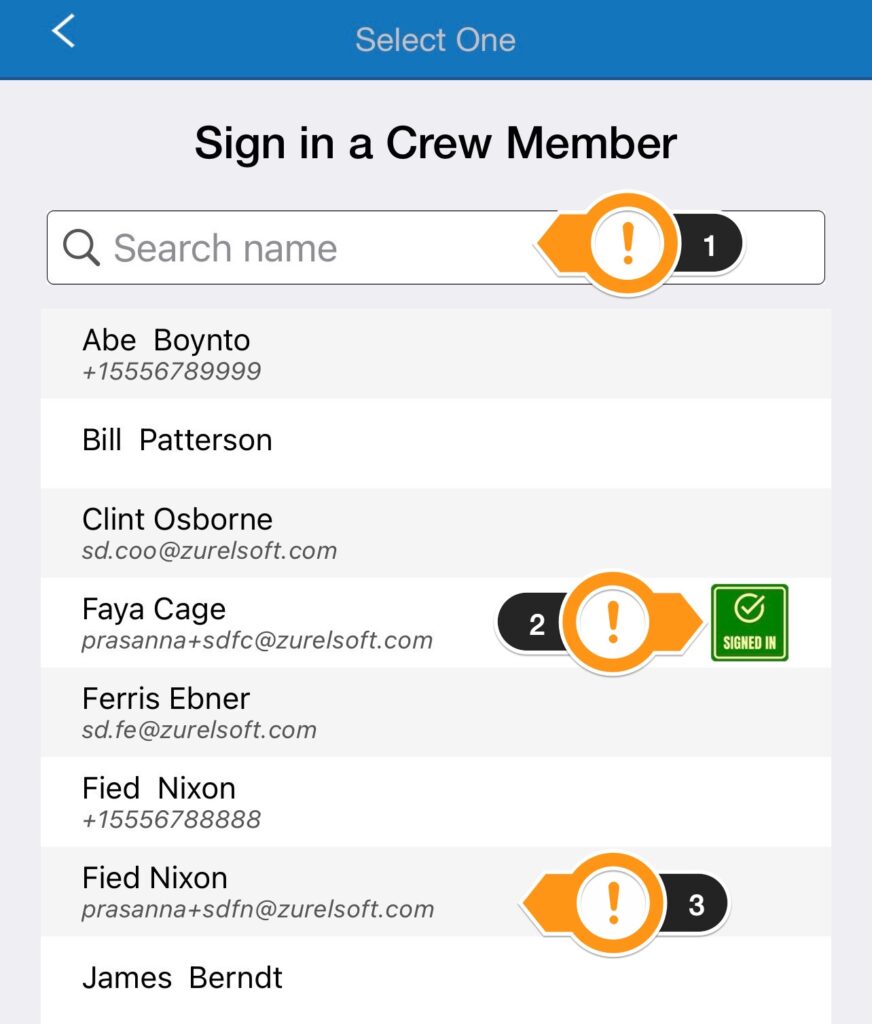
- Search name: If you do not find the name of your crew member who is already registered, search for it by the first or the last name.
- Signed In: The crew members who have already signed in at the job site (or tried to sign in but failed/denied) are indicated by the logo representing their sign-in status. You may select them as well.
- Contact Information: The contact information, when available, is also displayed and can be used to uniquely identify duplicate names.
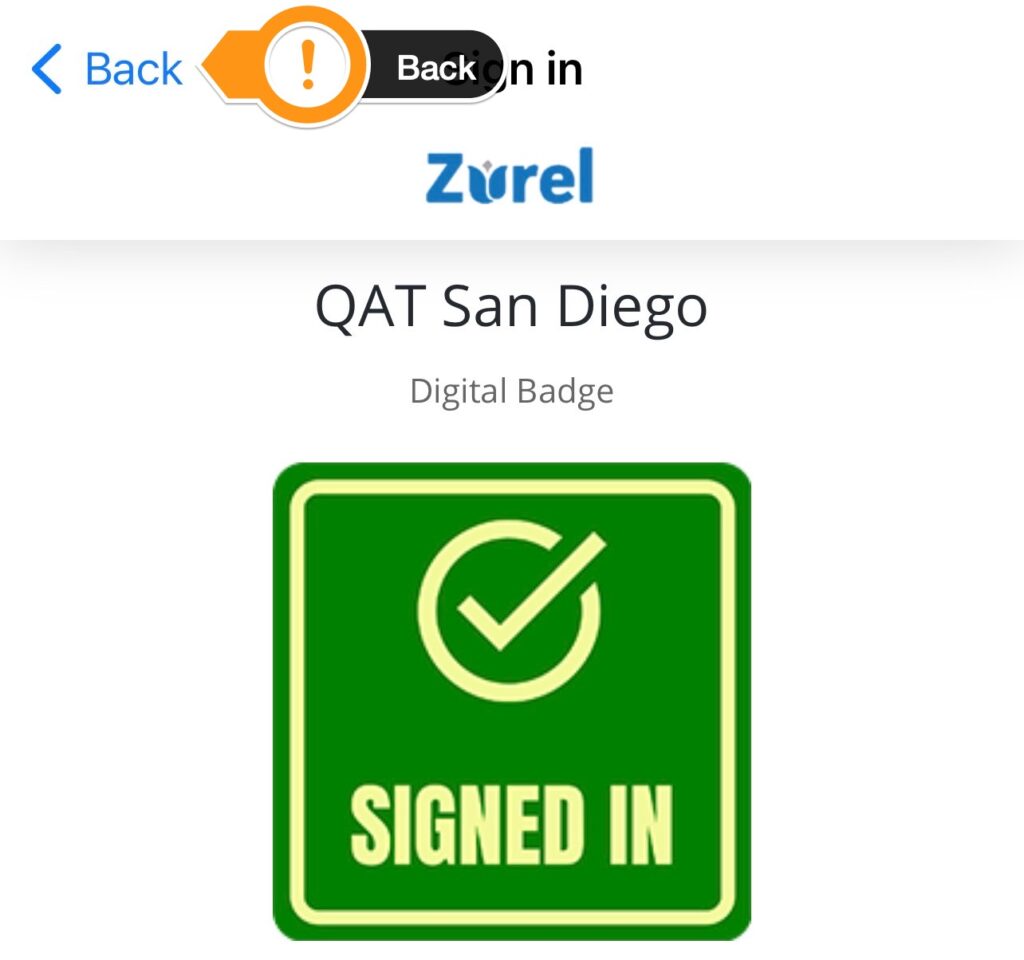
Once you find the crew member, select the name to launch the interface where the crew member can sign in. Once signed in, the crew’s Digital Badge is displayed. Click on Back on the top left to return to the kiosk.
Why is my site not listed, or my kiosk icon inactive?
If the site you are expecting is not listed, it could be for one or more of the following reasons:
- You are not signed in at the job site today. To access the Foreman’s Kiosk at your client’s job site, you need to sign in at the same job site at the time when you need to access the kiosk.
- You have not been labeled as a Crew Lead by your client. For you to access Foreman’s Kiosk at your client’s job site, you need to be designated as a Crew Lead. Please, ask the site’s host manager to designate so.
- The data filter for the dashboard has been set to filter for days other than today. Tap on the funnel icon that appears on the top right to change the filter setting to include today.