
Analysis Report Page
Hazard Analysis- Analysis Report page lets you view the detailed report that has been created.
You can navigate to this page by selecting an analysis report from the Analysis Reports table in the Analysis dashboard.
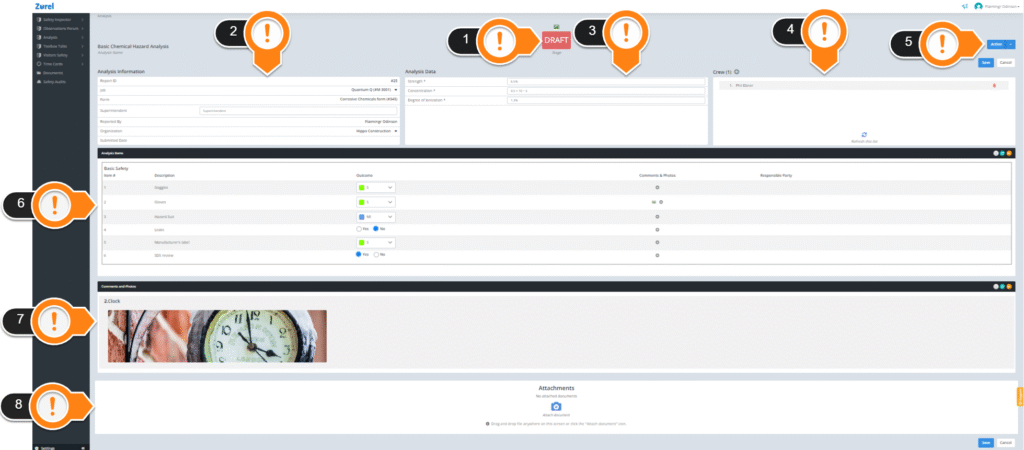
The preview page has the following items (in the order above):
1. Stage
This item displays the stage the report is in. A report can be in three stages:
This item displays the stage the report is in. A report can be in three stages:
- Draft
A report has been created but has not yet been submitted. You can only view the draft report created by someone in your organization. - Submitted
A report in this stage has already been submitted but not closed. Reports in this stage cannot be edited. If it is a report submitted by your organization, you can add still crew members. - Closed
A report in this stage is already closed and cannot be edited.
2. Analysis Information
This item lists basic information about the Analysis report:
- Report ID
The number that can be used to identify the report. - Job
The job analysis form is from. - Form
The full name of the form used for the report. - Superintendent
The name of the superintendent for that job. - Completed By
The name of the person who submitted the form. - Organization
The organization of the person who submitted the form. - Submitted Date
The date when the form was submitted.
3. Analysis of Data
This item lists the data obtained from the analysis. The data listed in this section are dynamic and depend on the items on the analysis form.
4. Crew
This table lists the crew members who were involved in the analysis.
5. Action Button
This button lets you perform the following actions on your reports:
- Share a link
Selecting this option lets you share a link to your report with anyone via email or their mobile number. - Close this Report
Selecting this option lets you close the report. This option is available only when the report is in the Submitted stage - Delete
Selecting this option lets you permanently delete the report from your Analysis Reports table. - Add Crew
Selecting this option displays a QR Code for adding more crew to the crew list. Your crew members can simply scan it from their device and add themselves as crew in the report. - Print PDF
Selecting this option lets you open the PDF version of the report in a new tab. You can download or print the PDF of your report.
6. Analysis Items
This item lists all the items analyzed and their details. Such as:
- Item #
The number used to identify the item. - Description
The full name or description of the item. - Outcome
The outcome of the analysis on that item. - Comments & Photos
The comments were made on the item and photos related to it. - Responsible Party
The name of the person/organization responsible for the item.
7. Attachments
This item displays any attached documents that are important to the analysis report. It may include PDFs and Photos.