
Form Settings Page Guide
Forms – The Forms page lists the forms created for the user. It can be used to perform Inspections and Hazard Analysis.
Forms can only be created by Managers and Admins.
You can reach this page from the root menu by selecting: Settings > Forms.
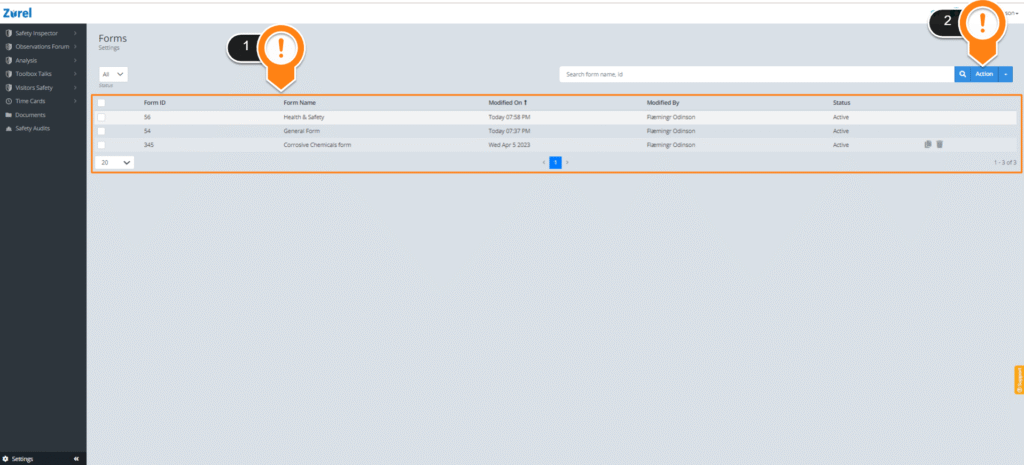
The form settings page has the following items (as labeled above):
1. Form List
This list lists all the forms that have been created for the user. It has the following columns:
- Form ID
The number used to identify the form. - Form Name
The full name of the form. - Modified On
The date the form was last modified. - Modified By
The name of the user who last modified the form. - Status
The status of the form.
Hovering over any row in the list lets you copy or delete a form. Selecting a form with checkboxes in the list allows you to perform multiple actions on the form.
2. Action Button
This button lets you perform the following actions:
- Activate
This option lets you set the status of a form to Active. An active form can be used to perform Hazard Analysis and Safety Inspections. - Suspend
This option lets you set the status of a form to Suspended. A suspended form can’t be used. - Add New
This option lets you add a new form to the list and opens the form settings page.