
Sharing Clipboard Items with other users
My Clipboards allows users to share saved items (Line Items, Documents, and Templates) with other team members. Once shared, the selected items will automatically appear in the recipient’s My Clipboards under the appropriate tab.
You can share:
- Line Items→ reusable content items.
- Docs → completed or imported documents.
- Templates → pre-built structures for new documents.
Steps to Share Items
- Open the Project workspace and select a project.
Alternatively, you can do this from the Document workspace by opening a document under the project. - On the right-hand toolbar, click the Clipboards icon (shown in the image below).
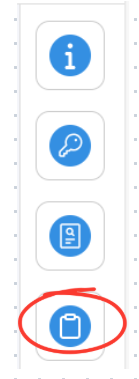
- In the My Clipboards panel, choose the correct tab (Elements, Docs, or Templates) and select the item(s):
Elements → check the box next to the item(s) you want to share. You can select one or multiple.
Docs → select the document(s) by clicking the checkbox. Multiple selections are allowed.
Templates → select the template(s) by clicking the checkbox. Multiple selections are allowed. - Click Share.
- After clicking Share, select a team member from the dropdown menu, then click Share again to confirm.
The selected item will appear in the recipient’s My Clipboards under the same tab.
⚠️Note:
- Share templates instead of documents to help your team create consistent content faster.
- Only users with the correct permissions (e.g., Project Admins or Managers) can share line items, documents, and templates.
BP-021