
Viewing and Managing Project Spec Items
Learn how to view, edit, and delete spec items linked to your project. This helps to keep requirements accurate, consistent, and easy for your team to follow.
Steps
- Open Project
- Go to the project where you want to view or manage spec items.
- Open Spec Items Panel
- Click Spec Items (spec icon) on the right toolbar.
- The panel opens, displaying all items that have already been added.
- View Items
- Review the list of all spec items currently linked to the project.
- Each entry shows the Code and, if available, a Description.
- Need to add more? See the Adding Spec Items to Projects
- Delete Spec Items
- Select the checkbox next to the item(s) you want to remove (multiple selection allowed).
- Click Delete.
- In the confirmation pop-up, → Click Yes to permanently remove the items.
- Edit Spec Items
- Click the spec item you want to change.
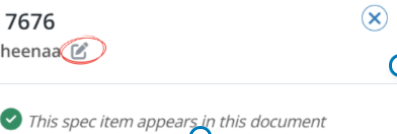
- The Edit option appears in the panel as shown in the image above.
- Click Edit, update the Code or Description, then click Save.
- Click the spec item you want to change.
⚠️ Note
- Deleted items cannot be recovered, so confirm before removal.
- To avoid confusion, keep codes consistent and descriptions clear so the whole team can easily identify them.
BP-016