
Zurel Pro – Time & Attendance Menu
You can access the Time & Attendance Menu by selecting the Time & Attendance menu entry in the Root Menu.
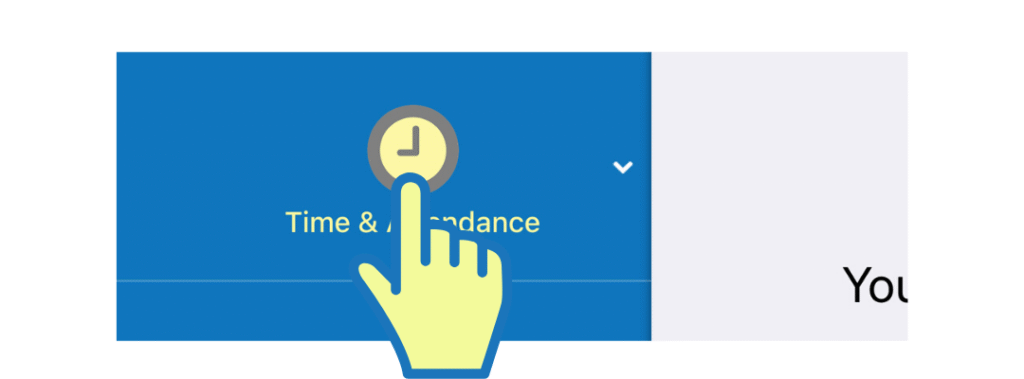
Selecting the menu item expands it and shows the Time & Attendance Menu. Based on your user-level privileges, not all menu items may be visible to you.
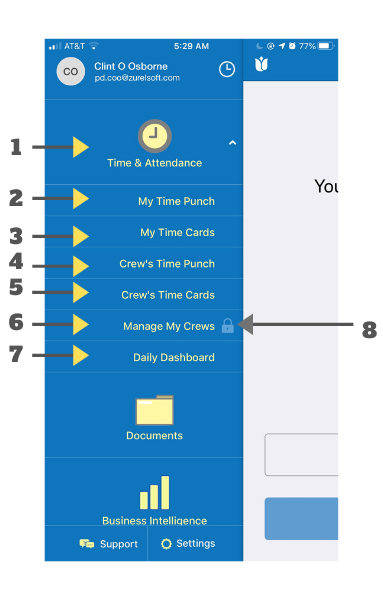
- Time & Attendance:
Selecting it expands the Time & Attendance menu. - My Time Punch: Opens the My Time Punch screen, where you can perform time card clock-in/clock-out or change activities.
- My Time Cards: Opens the My Time Cards screen, where you can access your time cards.
- Crew’s Time Punch: Opens the Crew’s Time Punch screen, where you can allow your crew members to clock in, clock out, or change activity.
- Crew’s Time Cards: Opens the Crew’s Time Card screen, where you can view and manage your crew’s time cards.
- Manage My Crew: Open’s Crew Management section where you can manage your crew members.
- Daily Dashboard: Open’s Daily Dashboard screen where you can see the latest time card punch activities.
- Lock Icon: A lock icon appears if the screen and the features associated with it are not available to you.