
Saving and Using Templates with My Clipboards
My Clipboards lets you save your desired templates for quick reuse, making it easy and quicker to create new documents or insert template content into ongoing documents.
1. Save Templates to My Clipboards
- Go to the Library.
- Under Library, click Templates.
- Select one or more templates you want to save in My Clipboards.
- On the top-right, click the blue Actions button.
- Select Copy to My Clipboard.
Alternatively, you can also open a Template Preview, click blue Actions button on the top, and choose Copy to My Clipboard.
The template is now saved under the Template tab in My Clipboards.
2. View Saved Templates in My Clipboards
- Go to the Projects section and open a project.
- On the right-hand toolbar, click the Clipboards icon.
- In the My Clipboards panel, click the Template tab to view your saved templates.
- Your list of saved templates appears.
- From here, you can also:
- Delete a template from clipboards: Select the template → Click Delete.
- Share a template: Select the template→ Click Share → Type username → Confirm.
This shares the template with the selected user, and it appears in their Clipboard. For more details, see Sharing Clipboard Items with others.
3. Using Templates from Clipboards
A) Creating a New Document
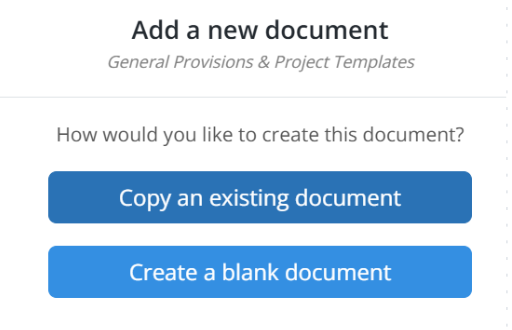
- When creating a new document, select Copy an existing document (as shown in the image above).
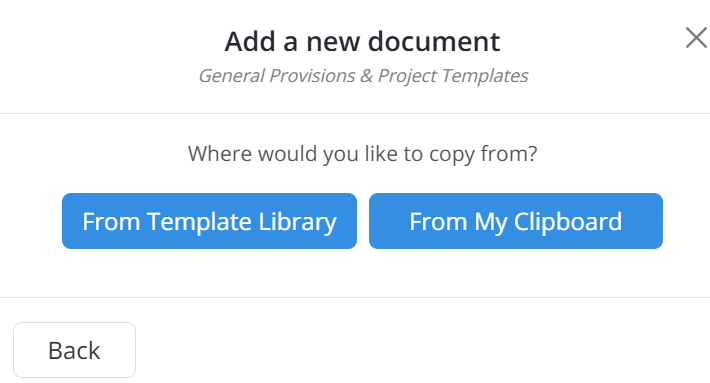
- A new screen will appear asking “Where would you like to copy from?” — select From My Clipboard (as shown in the image above).
- The list displays all items saved in your Clipboard, including templates:
- Templates are identified by the Template icon.
- Select the desired template to create a new document.
- Click Next to continue with the new document creation process.
B) Inserting Template Content into Ongoing Documents
- Open the ongoing document where you want to insert the saved template content.
- Select the line item where you want to insert the content.
- Place your cursor at the exact location where the template content should appear.
- On the right-hand toolbar, click the Clipboards icon (shown in the image below).

- In the My Clipboards panel, select the Template tab to view your saved templates.
- Select the template you want to insert.
- Click Insert.
- A preview screen of the selected template’s content will appear. From here, you can:
- Select individual sections to insert, or
- Click Select All to include the entire template.
- Click Insert again, then click Yes to confirm.
The chosen content is added at your desired location in the document.
BP-020