
Locking and Unlocking Line Item Contents in Documents and Templates
This guide explains how to lock and unlock line item contents in documents and templates to control editing and protect finalized content.
Prerequisites
- Managers and Admins can lock and unlock line items in Templates.
- Project Managers, Managers, and Admins can lock and unlock line items in Documents.
Lock a Line Item
- Go to the Bid Packages workspace.
- Click Projects in the left navigation and select a project.
For Templates: Go to Library → Templates and select a Templates. - Open the document.
- Click the line item you want to lock. The action menu will appear.
- If the menu is expanded, click the Lock as shown in the image below.
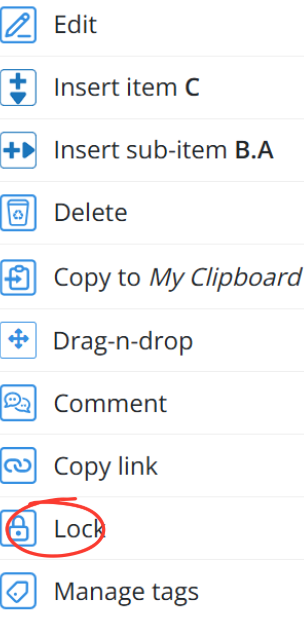
- If the menu is collapsed, click the Lock icon as shown in the image below.

- If the menu is expanded, click the Lock as shown in the image below.
- After clicking the Lock icon, a menu appears with the following options:
- Click Lock Selected Items
- (Optional) Click Change Selection to modify your selection
- Click Cancel to exit without locking
- Once Lock Selected Items option is selected, all the selected line item content is locked and can no longer be edited.
The same steps apply when locking line items in Templates.
Unlock a Line Item
- Locate the locked line item in the document or template.
- Place your mouse cursor over the locked line item, and the Unlock option will appear as shown in the image below.

- Then click Unlock, and a confirmation screen will appear.
- In the confirmation dialog, click Yes to proceed.
- The line item is unlocked and becomes editable again.
The same steps apply when unlocking line items in Templates.
⚠️ Note:
- Users without the required permissions can view locked content but cannot edit or unlock it.
BP-044