
Commenting and Mentioning Team Members in Documents
This guide explains how to add comments and use @mentions to notify team members, either for the entire document or for specific line items so they can review and respond directly within the document.
Comment and Mention on the Entire Document
Steps
- Go to the Bid Packages workspace.
- Click Projects in the left navigation.
The Project Dashboard opens, displaying all existing projects. - Select the project and open the document where you want to add a comment.
The Document Preview screen opens.
- In the right panel, click the Comments icon as shown in image above.
- Click Add New to open the comment box.
- Type your message in the comment field.
To notify someone, type @ followed by their name to @mention them. - Click the Send button to post the comment.
- The comment will appear in the document’s comment thread.
Anyone you @mention will receive a notification and can respond directly in the same discussion.
Comment and Mention on a Specific Line Item
Steps
- Open the document in the Document Preview screen.
- Click on the desired line item.
The Line Item Action Bar appears.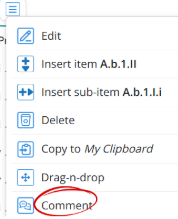
- Select Comment from the action menu as shown in the image above.
- Enter your comment in the message field.
Use @mention if you want to notify someone. - Click Send.

- A comment icon appears next to the line item, indicating a discussion is attached as shown in the image above.
💡 Tip:
- Use @mentions to quickly bring the right team members into a discussion without sending separate messages.
- Keeping comments inside the document helps maintain clear context and organized collaboration.
BP-064