
Bulk Actions for Managing Multiple Line Items in Documents and Templates
This guide explains how to use Bulk Actions to efficiently manage multiple sub-items within a document or template. Bulk Actions allow you to select several line items at once and perform actions—such as deleting them—without editing each item individually.
Steps
- Go to the Bid Packages workspace.
- Click Projects in the left navigation.
The Project Dashboard opens, showing all existing projects. - Select the project and open the document where you want to manage multiple line items.
Ensure the document is in Editing mode. - The Document Preview opens.
- Locate and click the root line item that contains the sub-items you want to manage.
- The line item’s Actions Menu (three-line menu icon) appears.
- If the menu is expanded, click Select Items as shown in the image below.
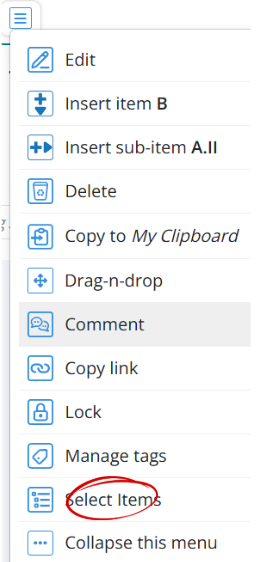
- If the menu is collapsed, click the Select Items icon as shown in the image below.

- If the selected line item does not contain sub-items, the Select Items option will not appear.
- If the menu is expanded, click Select Items as shown in the image below.
- Checkboxes will now appear next to each available sub-item under that root item.
- Select the checkboxes for the sub-items you want to manage or check the parent item to select all sub-items at once.
As soon as at least one item is selected, the Actions button appears at the top of the document.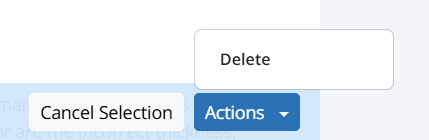
- Click the Actions button as shown as above. You can then:
- Click Delete to remove the selected line items.
- Click Cancel Selection to exit bulk selection mode without making any changes.
- If you choose Delete, a confirmation dialog titled Deleting Content will appear.
- Click Yes to confirm and remove the selected items from the document structure.
Deleted items are moved to the Document’s Recycle Bin and can be restored later if needed.
💡 Tip
- Bulk Actions apply only to sub-items within a selected parent line item. If a line item does not have sub-items, bulk selection will not be available.
BP-060