
Hazard Analysis Roles Page
The Analysis-Roles page allows you to assign various analysis roles to Zurel Pro users. You can assign these roles to your users to give them different privileges. The privileges that are available to each role are listed in the Role’s Privileges section of this page.
This page can only be accessed by Zurel Account Admin and Hazard Analysis Admin users.
You can navigate to this page from the Zurel web app root menu by selecting Settings > Analysis > Roles. The roles page looks like the attachment below:
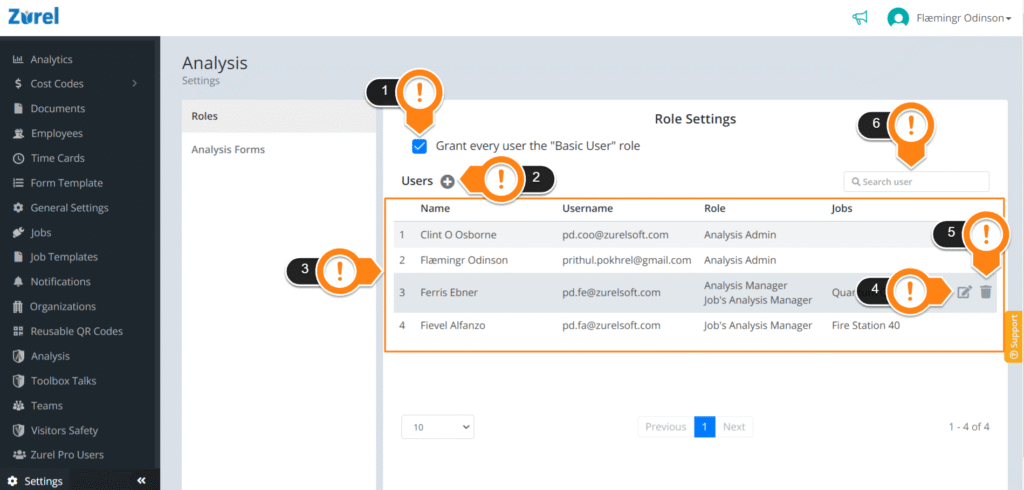
This page has the following items (as labeled in the above image):
1. Grant every user the “Basic User” role
Selecting this checkbox grants all Zurel users in your account the Basic User role. You might want to use this checkbox when you want to assign the Basic User role to all the users in your Zurel account without having to give them the Basic User role one by one.
2.+ (Add)
The + button lets you give roles to your users. Clicking on the button opens the Add a User Role window.
3. Roles List
The Roles List lists details for the users who have been assigned roles. It has the following columns:
- Name
The name of the user - Username
The email address of the user - Role
The role assigned to the user. A user can have multiple roles at once. - Jobs
The Jobs that the user has been assigned to. In cases where a user has been assigned to multiple jobs, the jobs are separated by a comma. If Jobs are assigned to users, those users will get push notifications on their mobile app whenever analysis reports are submitted to those jobs.
4. Edit Icon
The Edit icon only appears when you hover over a row on the Roles List. Clicking on this icon lets you edit user roles and jobs.
5. Delete Icon
The Delete icon also appears when you hover over a row. Clicking on the Delete icon lets you delete a user role permanently.
6. Search user
The Search user bar lets you manually search for a user.
Add a User Role
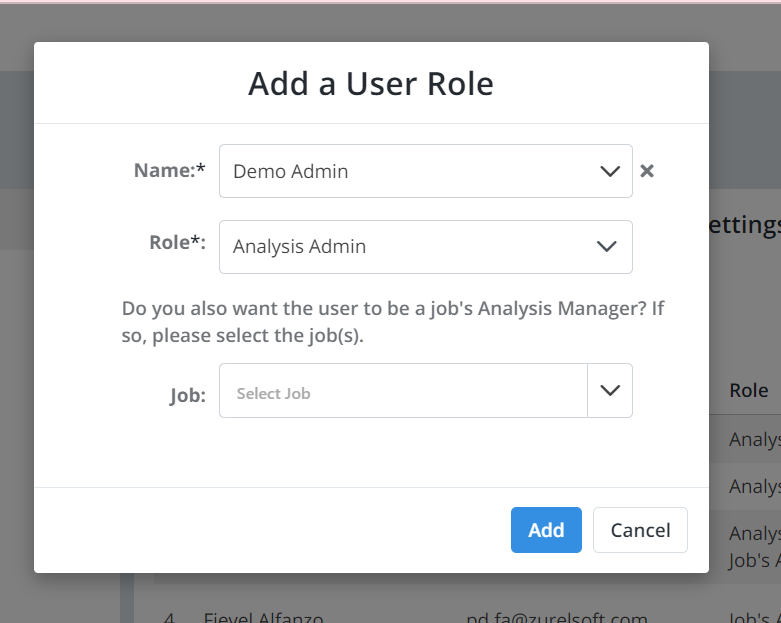
The Add a User Role window appears when you click the + button. It consists of the following items:
- Name
The name of your user. - Role
The role you want to give to the user. - Job
The job you want to assign to your user.
A user can be assigned multiple jobs. When users submit a hazard analysis form with a job selected, users with Job Manager roles for that job (or all jobs) will receive a push notification about that JHA Report in their Zurel Pro app.
Roles Privilege
The table below explains the privileges users with each role have:
| User Privilege | HA Admin | HA Manager | HA Jobs Manager |
|---|---|---|---|
| Access and Manage JHA Reports via Dashboard | YES | YES | Only for the Jobs they are assigned |
| Access Form Settings | YES | YES | |
| Access Role Settings | YES | ||
| Receive push notifications on the mobile app | Only for the Jobs they are assigned | Only for the Jobs they are assigned | Only for the Jobs they are assigned |
*The delivery of mobile notifications is dependent on the services provided by 3rd parties and is not guaranteed to be timely. For issues that require immediate attention, please have your crew notify using other mediums, such as a phone call.