
SI-Signatures
Safety Inspector – Signatures page lets users define the settings for the signatures that go on your safety inspection forms.
This page can only be accessed by Admin and Safety Managers.
You can navigate to this page from the Zurel web app root menu by selecting Settings > Safety Inspector>Job Site Inspections> Signatures
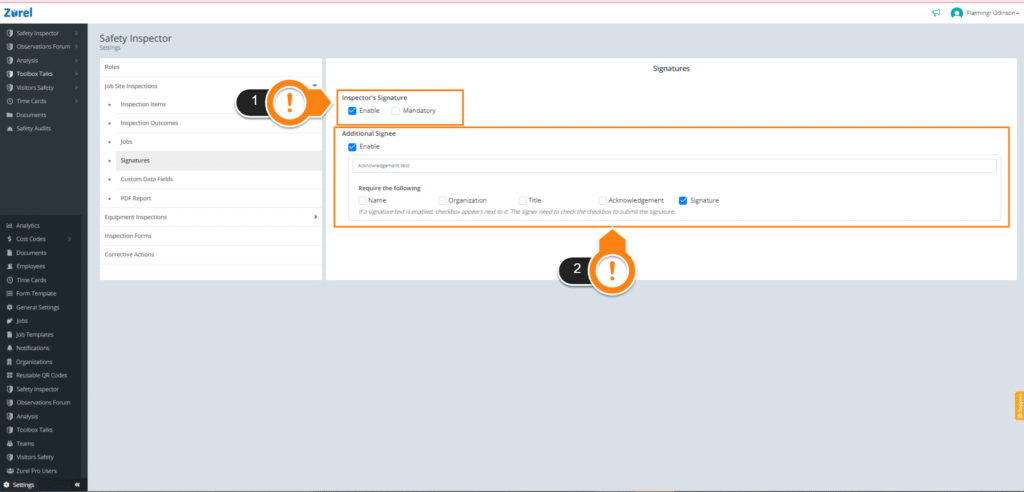
This page has the following items (as labelled above):
1. Inspector’s Signature
The Inspector’s Signature item lets you add a signature panel for the inspector in the inspection form. You can do this by selecting the Enable checkbox. If you want the inspector to mandatorily sign the form, check the Mandatory box.
2. Additional Signee
The Additional Signee item lets you add a signature panel to the inspection form. You can do this by selecting the Enable checkbox. Along with the additional signature, you can also add the following items:
- Acknowledgement Text
The Acknowledgement Text box lets you choose what text gets displayed on top of the additional signee section in the form. A signee can only submit the form after checking the box that appears next to this text. - Name
The Name checkbox can be enabled to make filling in their name mandatory for the signee. - Organization
The Organisation checkbox can be enabled to make filling in their organisation name mandatory for the signee. - Title
The Title checkbox can be enabled to make filling in their title mandatory for the signee. - Acknowledgement
The Acknowledgement checkbox can be used to display the acknowledgement text in the form. - Signature
The Signature can be enabled to make signing mandatory for the signee before they submit the form.