
How to enable trainee’s signature
Enabling trainees’ signatures on your Toolbox Topics makes it mandatory for your trainees to sign their toolbox talks meeting forms. You need to enable trainees’ signatures in your topics when you want all your trainees to sign a toolbox topic form. You can also add messages to your signature by adding an acknowledgement text. To make a trainee’s signature mandatory for a topic, you need the Toolbox Talks Admin or Manager role.
Platform: Zurel.app (Website)
From the Zurel.app website dashboard, select Settings>Toolbox Talks> Topics to navigate to the List of Topics page.
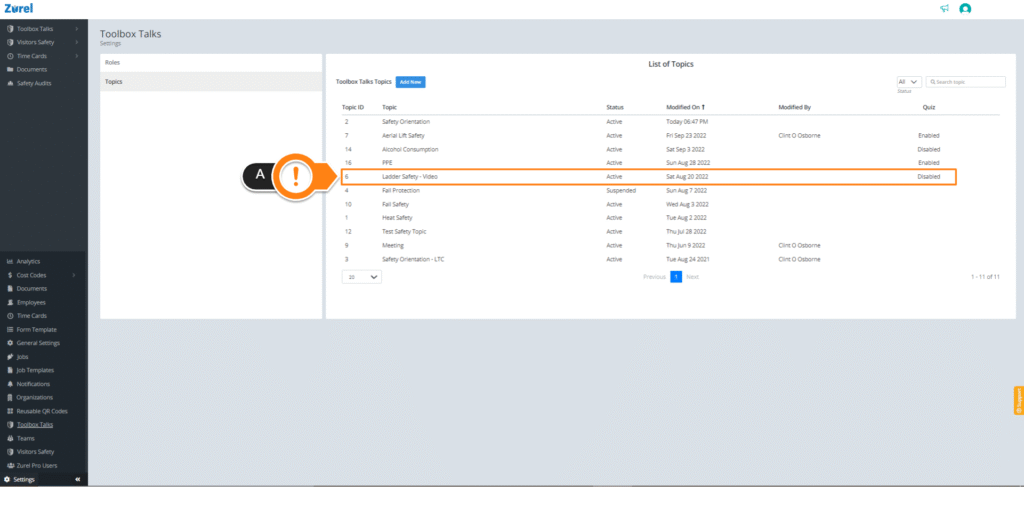
After the List of Topics page opens, select any topic (A). Selecting a topic opens the Topic Content page.
Topic Content
On the Topic Content page, find Require Signature and check the Participant (A) box under it.
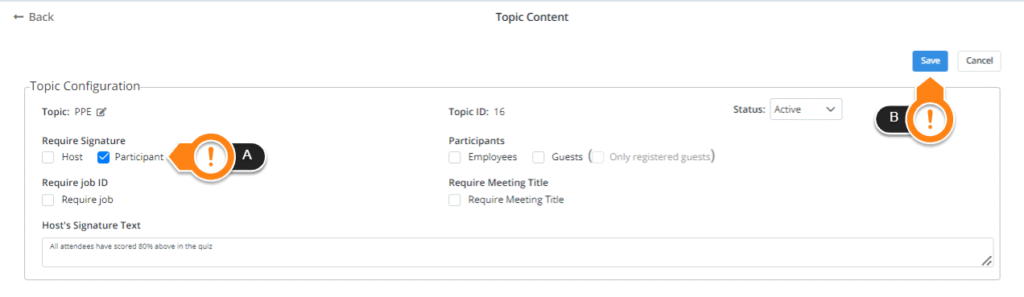
When you are done, click on Save (B). Your topic will now have the trainee’s signature enabled and mandatory.
To display an acknowledgement text on the signature panel to your trainees when they sign their meeting form for the topic, scroll down to Topic Content and find Participant’s Signature Text. To add your signature text in Spanish, switch to the Spanish tab.
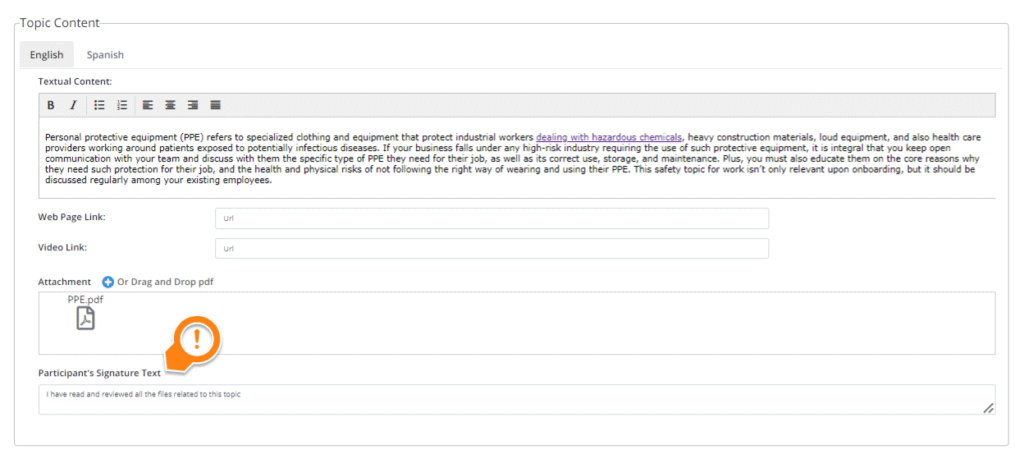
The acknowledgment text, along with a checkbox next to it, gets displayed on the signature panel. The trainee is required to check the checkbox before submitting the form.