
Associating Project Specific Templates to the Trades from Project Workspace
This guide explains how to associate templates with a specific Trade Workspace at the project level, ensuring the correct templates are available for that trade within the project.
Steps:
- Go to the Bid Packages workspace.
- In the left menu, click Projects.
A list of all projects is displayed. - Select a project to open its Project Workspace.
- Scroll down to the Trade Workspaces section.
- Select the Trade Workspace where you want to associate templates.
- On the right side of the trade row, click Actions.
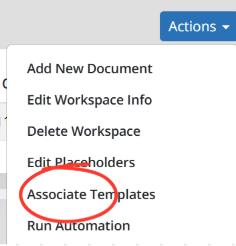
- From the dropdown, select Associate Templates as shown in the image above.
The Associated Templates window opens. - The list shows templates inherited from Trade Settings, which cannot be removed. You can associate additional templates to the trade that apply only to the current project and do not affect global trade settings.
- Click Add Templates.
- In the template selection screen:
- Use Filter by tags to narrow down the list of templates.
- Use the Search field to quickly find a specific template.
- Select one or more templates by checking the checkbox next to each template name.
- Click Add to associate the selected templates with the Trade Workspace at the project level.
The selected templates are associated to the Trade Workspace successfully for that project. This allows teams to manage which templates are used for document creation and document automation for the trade at that project, without affecting trade configurations in other projects.
💡 Tip:
- Use Search or Filter by tags to quickly find templates when the list is long.
BP-043