
Creating a New Document Revision
Create a new document revision when you need to make major updates while keeping the current version locked as a reference. This helps maintain a clear revision history, prevents accidental changes to reviewed or shared content, and keeps earlier versions available for tracking and comparison.
Prerequisites
- Only users with document edit permissions can create or edit revisions. All other users can view the current revision only.
Steps
- Go to the Bid Packages workspace.
- Click Projects in the left navigation. The Project Dashboard opens.
- Select the project where your ongoing document is present.
- Open the document for which you want to create a new revision.
- The document preview opens. To create a new revision, the document must be in ON HOLD state.
To create a new revision, your existing document revision must be in the SNAPSHOT stage, which means no further edits can be made to the current revision. - To make the current document state ON HOLD, On the document page, click the Actions button at the top right.
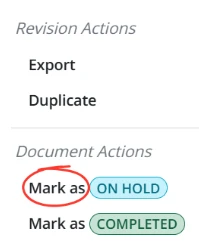
- From the Actions button, select Mark as ON HOLD shown in the image above.

- Click Yes to proceed. The document is now ON HOLD and its current revision is labeled as SNAPSHOT, which means no edits are allowed for that revision as shown in image above.
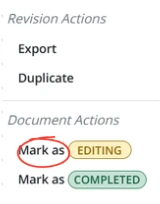
- To make edits or changes again, you must create a new revision by selecting Mark as Editing, and clicking Yes as shown in image above.
- After selecting Mark as Editing, a new document revision is created in editable mode. Any changes or edits made will be applied to this latest revision.
- After making changes, you can Mark as COMPLETED to finalize the document, or Mark as ON HOLD to lock it and repeat the same steps to create another new revision.
💡 Tips
- Only DRAFT revisions are editable.
- Always mark a revision On HOLD before creating a new one.
- Snapshots revisions are read-only and cannot be used to create new revisions.
BP-049