
Working with Revisions in a Document
This guide explains how to access and switch between different document revisions so you can safely manage changes while maintaining a clear revision history.
Access the Document
- Go to the Bid Packages workspace.
- Click Projects in the left navigation. The Project Dashboard opens.
- Select the project where your ongoing document is present.
- Open the document.
View or Switch Between Revisions
You can switch between document revisions using either of the methods below.
Option 1: Use the Revision Navigation Arrows

- Locate the Revision label at the top of the document as shown in image above.
- Click the left or right arrow buttons next to the label.
- Each click moves you to the previous or next revision in sequence.
Use this method for quick navigation between nearby revisions.
Option 2: Use Document Information
- Click the Document Information icon on the right panel.
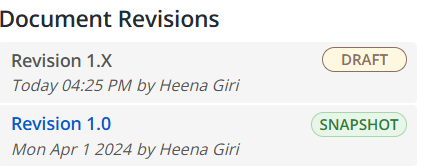
- Scroll down to Document Revisions as shown in image below.
- Select the revision you want to view from the list.
Use this method when you want to jump directly to a specific revision.
Revision Stages – What You Can Do
- DRAFT: Fully editable. You can update content and line items.
- SNAPSHOT: Read-only. Content can’t be edited, but you can review and reference it, and create a new revision if the latest revision is in SNAPSHOT.
- FINAL: Fully locked. Used as the finalized version for export and reference.
To learn more, see Understanding Document Revision Stages.
⚠️ Note:
- If you don’t see Edit, you may be in a locked revision stage (such as ON HOLD or SNAPSHOT). Switch back to a Draft revision or create a new revision to continue editing.
BP-051