
Understanding Document Revision Stages
This guide explains the three document revision stages—DRAFT, SNAPSHOT, and FINAL—so you can understand whether a document revision is editable and what actions are available in each stage.
Prerequisites
- Only users with document edit permissions can create or edit revisions. All other users can view the current revision only.
Steps
- Go to the Bid Packages workspace.
- Click Projects in the left navigation. The Project Dashboard opens.
- Select the project where your ongoing document is present.
- Open the document.
- Check:
- The revision stage shown by the revision badge at the top (DRAFT, SNAPSHOT, or FINAL)
- The document state shown on the right (EDITING, ON HOLD, or COMPLETED)
Document Revision Stages
The Revision Stage appears as a badge at the top of the document.
It shows the status of the revision you are viewing and indicates whether that revision can be edited.
DRAFT
- Meaning: The revision is editable, you can make the further edits with this document revision.
- Revision Actions available:
- Export
- Duplicate
SNAPSHOT
- Meaning: The revision is locked and saved as a reference; it is no longer editable.
- Revision Actions available:
- Export
- Duplicate
FINAL
- Meaning: The revision is completed and finalized; it cannot be edited further.
- Revision Actions available:
- Export
- Duplicate
Document States (Document Status)
The Document State is shown on the right side of the document header
(for example: EDITING, ON HOLD, COMPLETED).
It describes the status of the entire document and controls which Document Actions are available.
EDITING
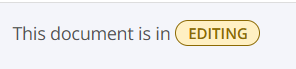
The document is editable, and new revisions can be created.
- Document Actions available are Mark as ON HOLD, Mark as COMPLETED, Copy to My Clipboard, Manage tags, Move, and Delete from Project.
ON HOLD
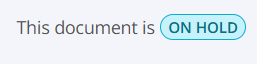
The document is not editable because the latest revision is marked ON HOLD.
To continue editing, a new revision must be created.
- Document Actions available are Mark as Editing, Mark as COMPLETED, Copy to My Clipboard, Manage tags, Move, and Delete from Project.
COMPLETED

The document is finalized and no longer editable, and no new revisions can be created.
- Document Actions available are Export, Duplicate, Copy to My Clipboard and Manage tags.
💡 Tip:
- You can create a new revision only if your last document revision is ON HOLD.
- Snapshot and Final revisions are read-only—use them to Export, Duplicate, or Copy to My Clipboard.
BP-050