
Creating New Documents in Trade Workspaces
You can create new documents within any trade workspace to support your project needs. The steps below explain how to add a trade-specific document using a template, copying from existing project files, or starting with a blank document.
Create a New Document
- Open the trade workspace from your project where you want to create documents.
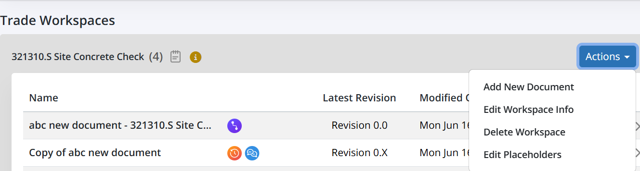
- Click the Actions button at the right side of the trade name, as shown in the image above.
- Select Add New Document.
You will now choose one of two methods:
Option 1: Copy an existing document
- Select Copy an existing document.
- Choose one of the following sources:
- From Template Library: Select any published bid package template as a starting point.
- From Project Workspace: Copy or inherit documents from your project workspace into the trade workspace.
- From My Clipboard: Copy documents or templates saved in your clipboard.
- Select the document you want to copy.
- Click Add to complete the process.
A new trade document will be created for that trade workspace by copying the contents from the selected source.
Option 2: Create a Blank Document
- Select Create a blank document.
- Enter the Document Name.
- Click Next to create a new blank document. This process will create a new blank trade document, allowing you to work from scratch.
Additional Trade Workspace Actions
Additional management tools are available through the Actions menu in every trade workspace.
Edit Workspace Info
- Click Actions → Edit Workspace Info.
- Update the Trade Name, Section Name, or add optional Trade Notes.
- Use formatting tools (bold, italic, lists, links) if needed.
- Click Save to apply changes.
Edit Placeholders
- Click Actions → Edit Placeholders.
- View all placeholders associated with the trade.
- Click Add New to create a new trade-specific placeholder.
- Enter a Key and Value.
- Use the search bar to quickly locate placeholders.
- Click for Project Placeholders to view placeholders from the project level.
Delete Workspace
Deletion depends on whether the workspace contains documents:
- To delete a trade workspace, click Actions → Delete Workspace and confirm Yes.
- If the trade workspace has documents, it cannot be deleted until all of its documents are removed.
Workspace deletion is permanent and cannot be undone.
💡Tips
- When copying a document, choose the Template Library for standardized formats to keep your project consistent.
- Use Create a blank document only when you need a fully custom layout—this helps keep your workspace organized.
BP-029