
How do I retrieve a visitor’s sign in code?
Whenever a visitor signs in using a new smartphone, in order to authenticate the visitor, we send a six-digit “sign-in” code to the visitor’s phone number or the email address registered with us. If, for any reason, a visitor cannot access the code when signing in, a Zurel pro user at the job site may retrieve the code to provide it to the visitor.
Step 1. Select the “Code” button
Select the Code button (A) from the toolbar in the site dashboard screen.
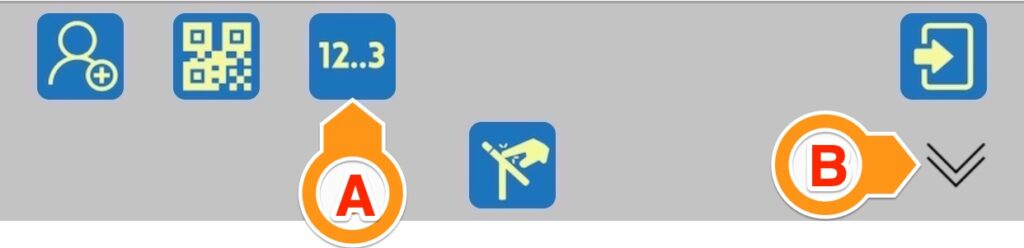
The toolbar is located at the bottom of the screen. If you cannot see the Code button, select or unselect the toolbar expansion button located on the lower-left corner (B) of the page to expand the toolbar.
Step 2. Select the “Code” button
From the list of pending visitors (A), select the visitor for whom you want to retrieve the code.
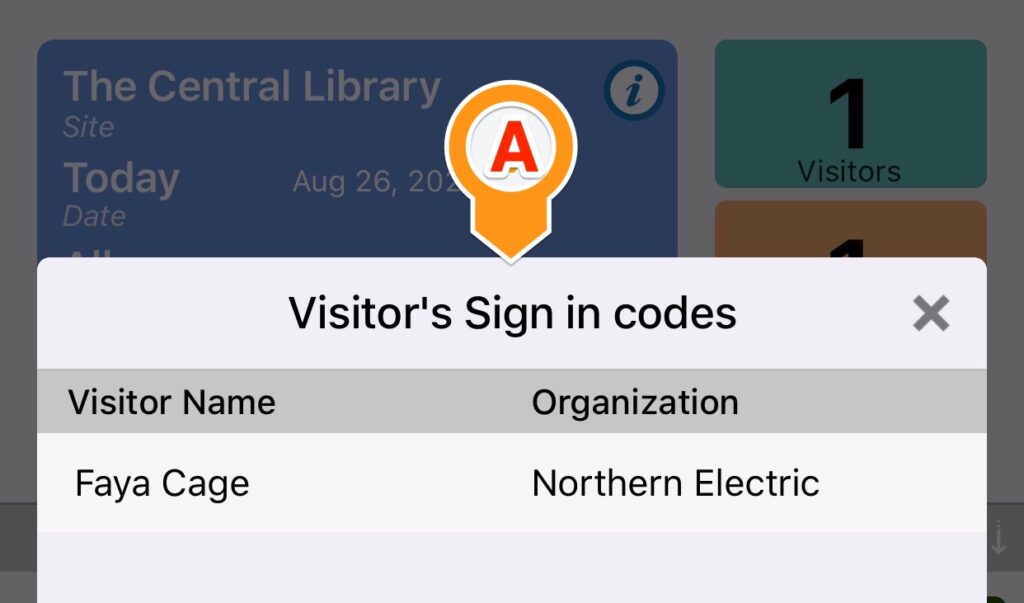
This list is usually empty. If you do not see the name of the visitor you are looking for, it is likely because of one of the following reasons:
- The visitor’s code has already expired.
- The visitor has not performed the “Look me up” step to retrieve the code.
- The visitor has already signed in.
- You are looking at the wrong site.
Step 3. Retrieve the code
Retrieve the code from the “Sign-in Code” dialogue box.
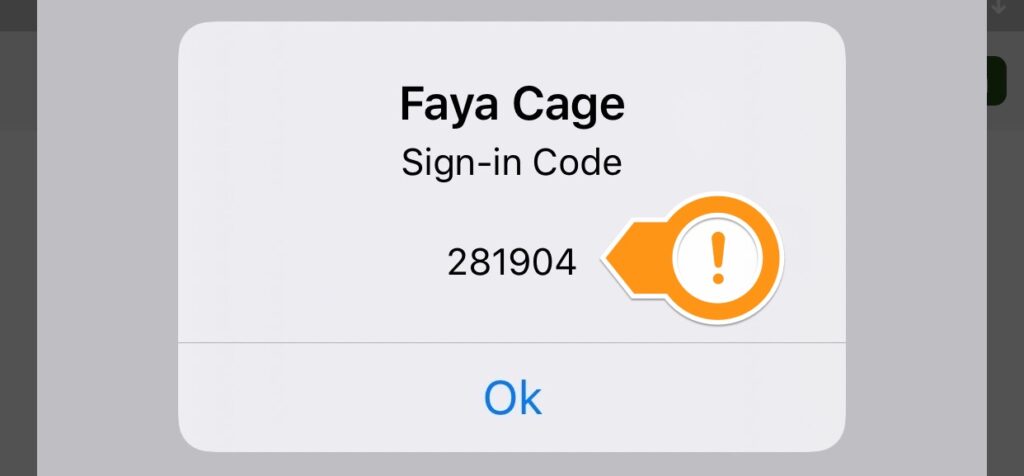
Please note that by the time the visitor uses the code, it may have expired. If that happens, ask the visitor to perform the “Look me up” step again.