
How to make a topic available to guests
Making a Toolbox Topic available to guests lets you and your Job Managers share a topic with guests. You need to make a topic available to guests when you want guests to attend meetings for the topic or want them to review the topic on their own.
There are two types of guests: registered and non-registered guests. Registered guests are registered into the Zurel app through a process of authentication. Registering a guest keeps their information (such as name, organization, and contact information) consistent across multiple instances.
To make a Toolbox Topic available to guests, you need the Toolbox Talks Admin or Manager role.
Platform: Zurel.app (Website)
From the Zurel.app website dashboard, select Settings>Toolbox Talks> Topics to navigate to the List of Topics page.
Toolbox Talks
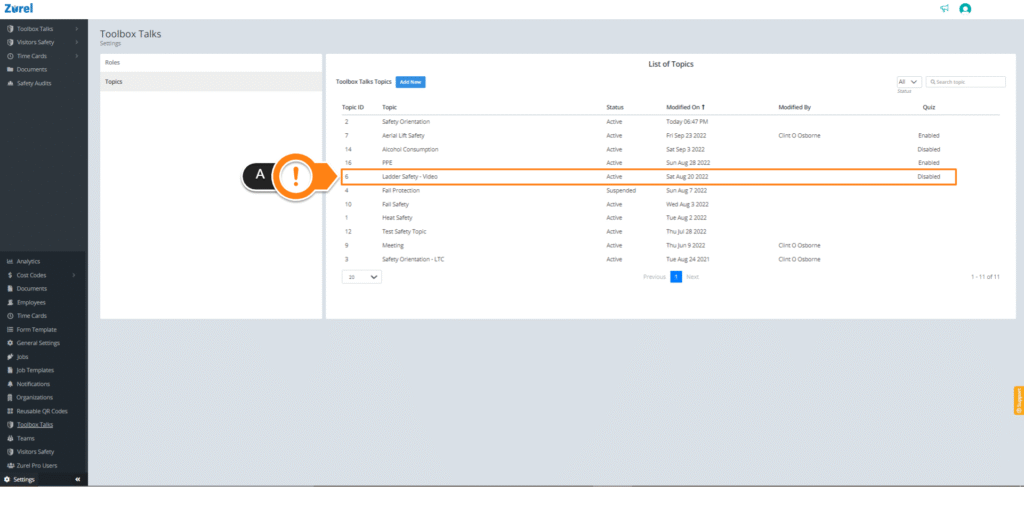
After the List of Topics page opens, select any topic (A). Selecting a topic opens the Topic Content page.
Topic Content
On the Topic Content page, find Participants and check the Guests (A) box under it. If you want your Toolbox Topic to be only available to guests, uncheck every other box except for the Guests checkbox.
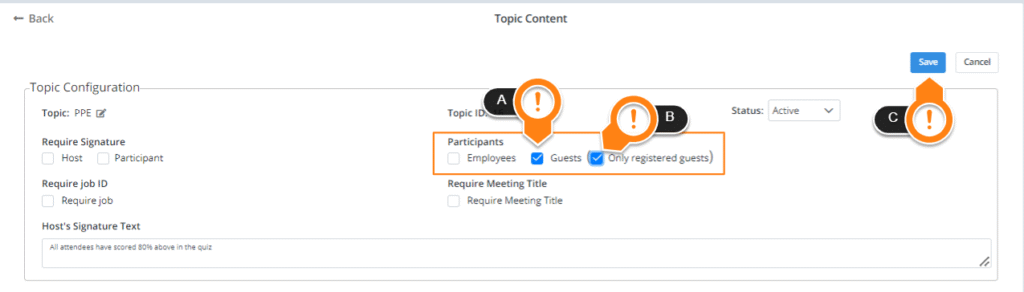
Sometimes, you need to make sure your guests are registered. In these cases, check the Only registered guests (B) box. Checking this box makes the toolbox topic available only to registered guests. If a guest isn’t registered and wishes to attend a toolbox topic meeting or review it, they must register first to get access to the toolbox topic.
Once you are done checking the boxes according to your requirements, click on Save (C).