How to search for documents in Zurel Pro
Document search and filter
Starting with version 2.3.2, you will be able to filter documents by their date range, document label, the name of the user who added it, or the type of the document.
Searching and Filtering Documents
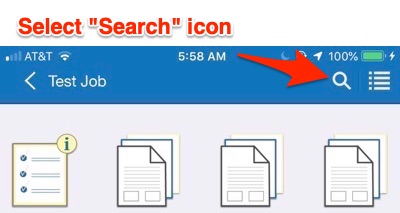
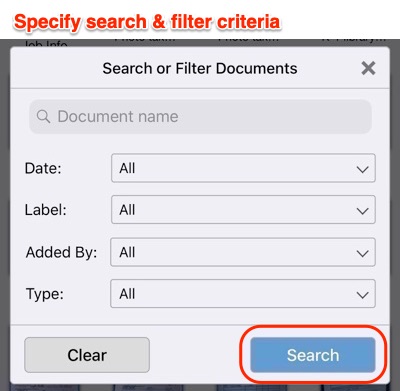
- In the Job Documents screen, select the search icon located in the top right corner of the screen. A dialogue box to enter your search criteria is launched.
- Type document name or select your filter criteria, and select Search
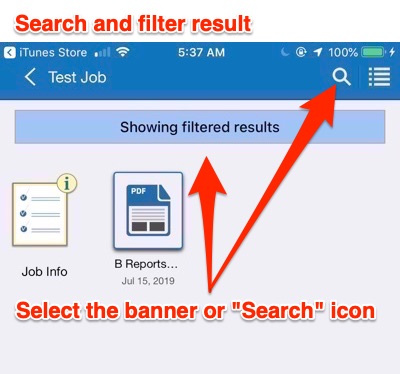
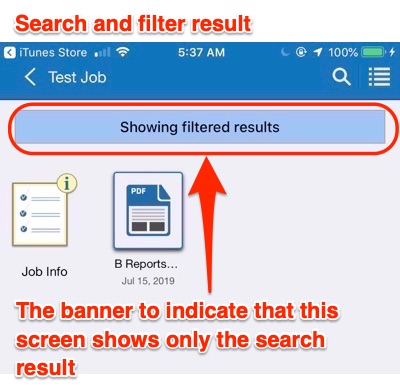
- The dialogue box closes, and the Job Documents screen lists only the documents that match the search and filter criteria. A banner that reads “Showing filtered results” appears on top of the Job Documents screen to indicate that the screen now includes only the filtered results
Clearing Search Results
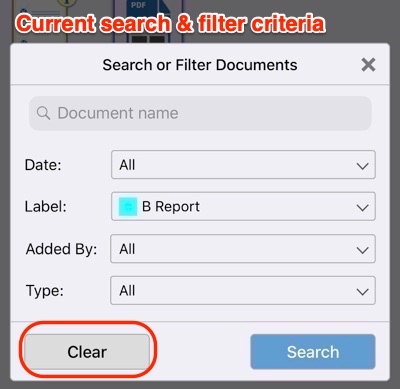
- In the Job Documents screen with a search banner, select the banner or the search icon located in the top right corner of the screen. A dialogue box with the current search and filter criteria is shown.
- Select the “Clear” button. The dialogue box closes, and the Job Documents screen lists unfiltered results.