
How to self-register and sign in using my smartphone?
Step 1: Launch the sign-in page.
Launch the “Sign-in” page for the job site. You can launch the sign-in page using one of the following two methods.
- By scanning the site QR code.
- Click the sign-in link that has been sent to you via text message or email.
Step 2: Select “New Registration” on the sign-in page
If this is the first time you are using your smartphone to sign in, you will see the sign-in page with the “Look me up” text box (A). If you have not been registered, click the “New Registration” button (B) to launch the Self-registration page to register.

Step 3: Enter your information
Enter your information on the next page.
- Make sure to enter both your first and last names.
- Select your organization from the drop-down list (A). You can search for the name of your organization on the list.
- If you cannot find your organization, you may be able to add it by selecting the “+” button next to the drop-down list (B). If this option is not available on the page, ask your site manager to add your organization.
- Enter a valid e-mail address or a 10-digit phone number. You need to provide either an email address or a phone number where you can receive a message with a code. Without the code, you will not be able to complete the registration and sign in.
- Select “Next” when you are done.

If there is an error condition, this page reloads with an error message. Otherwise, it loads with the “Registration code” entry box to enter the code that is sent to the email address or the phone number you entered.
Step 4: Enter the registration code
In the box labeled “Registration code” (A), enter the code you received and click the “Register” button(B). If the code is valid, selecting “Register” completes your self-registration and starts your sign-in process in step 5.
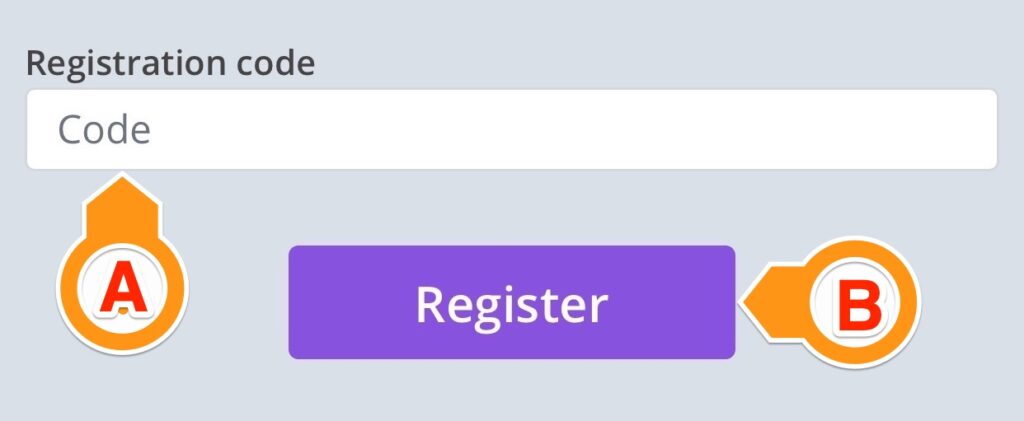
Make sure to enter the code in a timely manner. It has a 5-minute expiration time. If it expires, you will need to start the process all over again.
Step 5: Review and select “Sign In.”
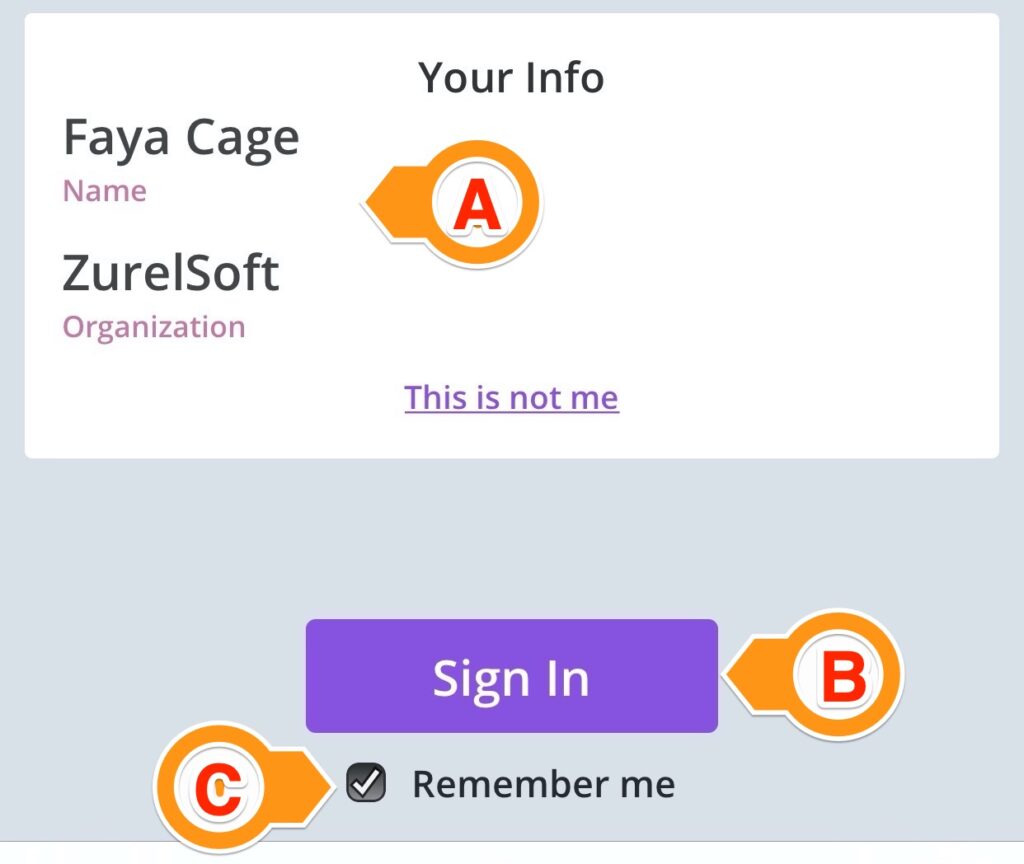
Once you are registered, a page with your site information is displayed. This is also the page that gets displayed if you have used the smartphone to sign in before. Review your information (A) and click the “Sign In” button (B) to continue. The checkbox “Remember me” (C) is automatically selected for ease of sign-in in the future.
Step 6: Complete, sign, and submit the questionnaire
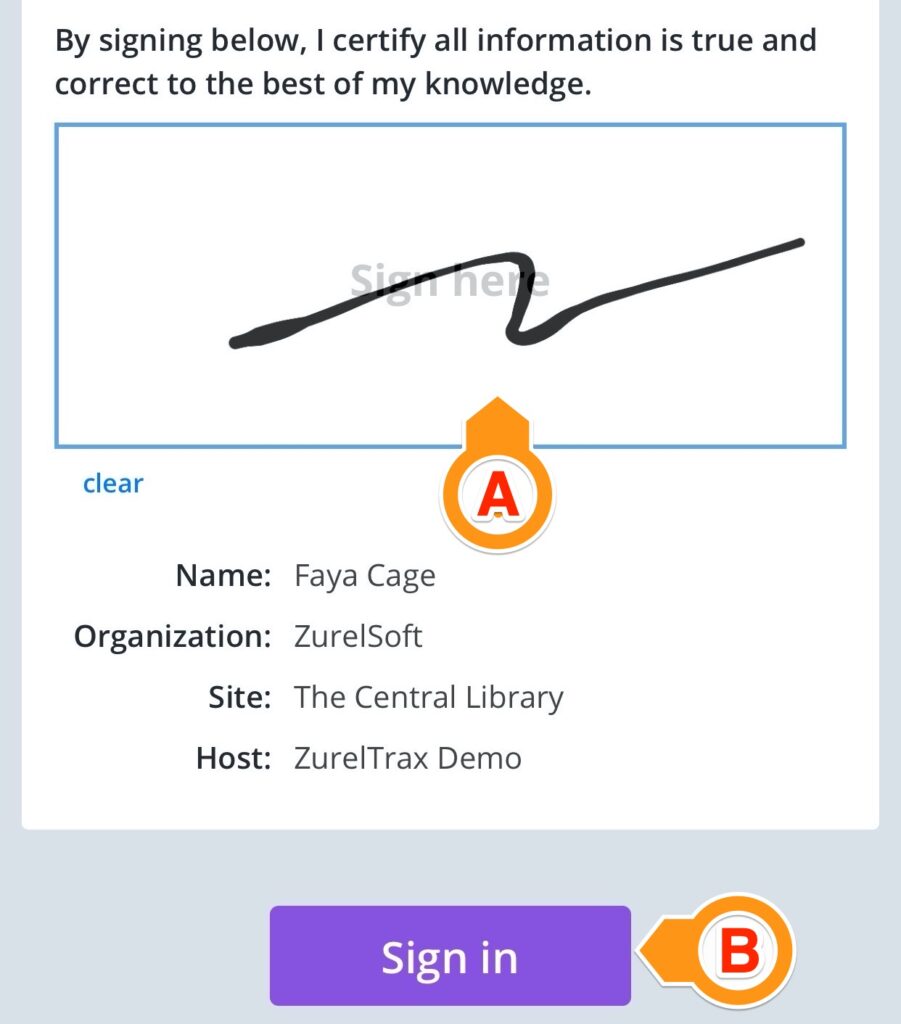
After verifying the information and selecting the “Sign In” button in step 5, you will be required to complete and sign a questionnaire. The content of the questionnaire depends on your host and the job site. After completing the questionnaire, sign using your fingertip in the signature area (A) and select “Submit” (B). If there is an error condition, you will be informed of it.
Step 7: Your digital badge
Once you submit your questionnaire, your digital badge will be displayed with your sign-in information. You can learn more about a digital badge here. You may update your digital badge with the latest information by selecting the “Refresh” button located at its bottom.
