
How to sign in your crew members at a job site using your smartphone or tablet
You can sign in your crew members at the same job site without using the Zurel app. In order for you to be able to do so, your host needs to make you a Crew Lead on Zurel. Make sure you have been enabled as a Crew Lead by your host.
Platform: Your Smartphone or Tablet
Sign in at a job site using your smartphone or tablet. There are several methods to do so at a job site. The most common method is by scanning the Site QR Code posted at the job site. Once you sign in successfully, you will see your Digital Badge.
Digital Badge
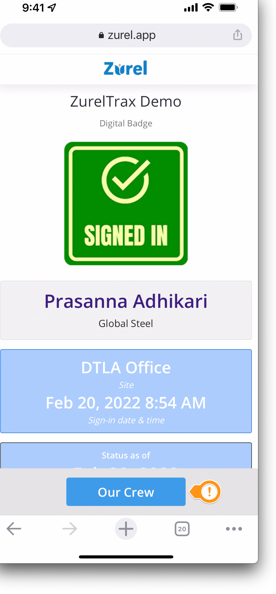
If you have been enabled to sign in your crew (Crew Lead feature), you will find the Our Crew button at the bottom of your digital badge. Tap this button to open the Our Crew screen.
Our Crew
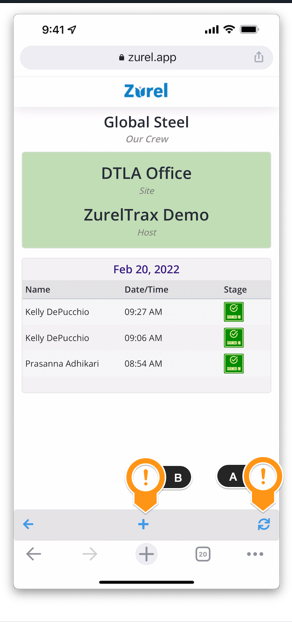
Our Crew lists all the crew members from your organization who have tried to sign in at the job sites today, regardless of the method used and the sign-in outcome. Those who have successfully signed in are labeled as Signed In. You can tap on the Refresh icon (A) to update this list. To sign in a crew member, tap on the Add icon (B) to open the Sign-in Screen.
Sign-in Screen
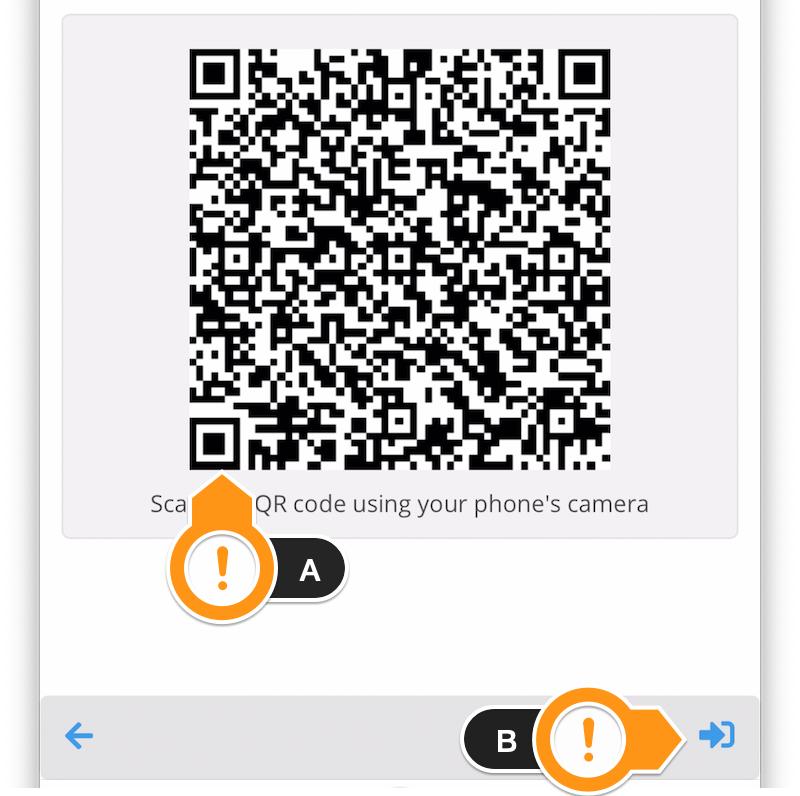
The Sign-in Screen displays the site QR code (A). For your crew members who are using their smartphones to sign in, have them scan this QR code with their smartphones to sign in. For those who need to sign in using their smartphone or tablet, tap on the Sign In button (B) to open the Registered Crew list.
Registered Crew
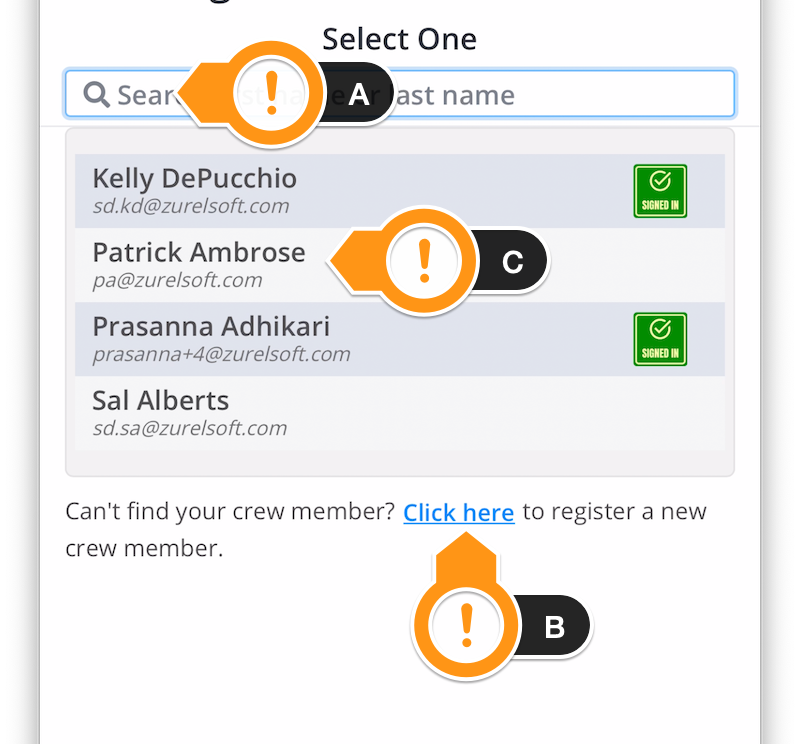
The Registered Crew page lists all your crew members who have been registered with the host, regardless of whether or not they have been signed in. If you don’t see your crew member on this list, use the search box (A) to search using the first or the last name. If the member has not been registered, tap on Click here (B) to register. Once you find the name, tap on it (C) to open the Sign In page.
Sign In Page
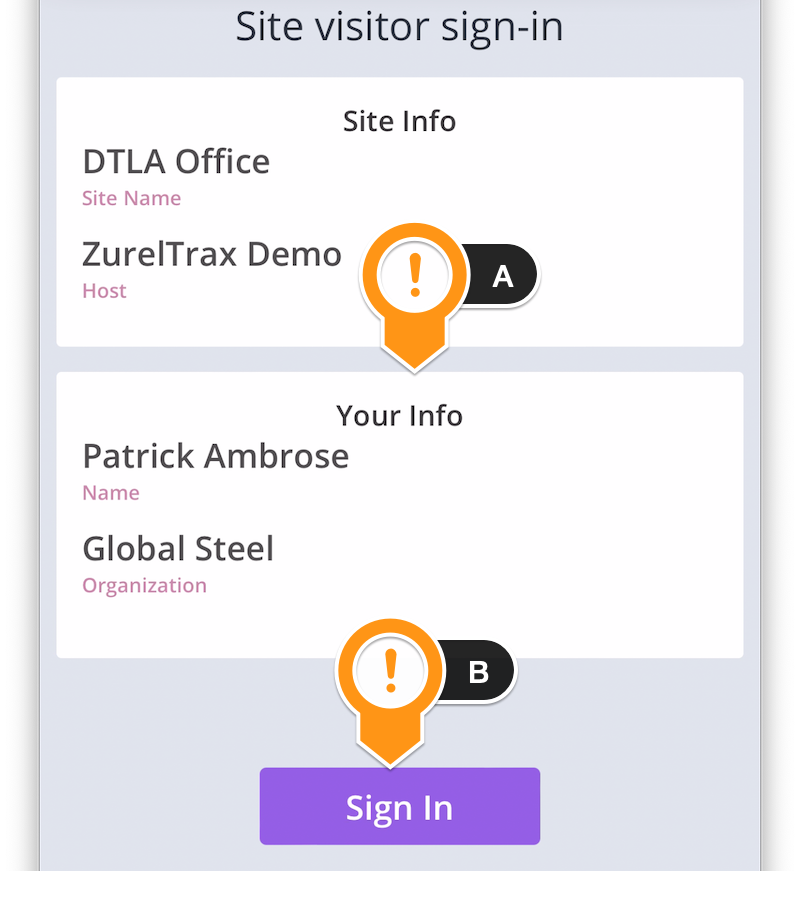
The Sign In page shows the information about the crew member (A). Verify this information and start the sign-in process by tapping on the Sign In button (B). The sign-in process is similar to that using other methods of sign-in. Once the sign-in process is completed, the screen displays the digital badge of the crew member.
Crew’s Digital Badge
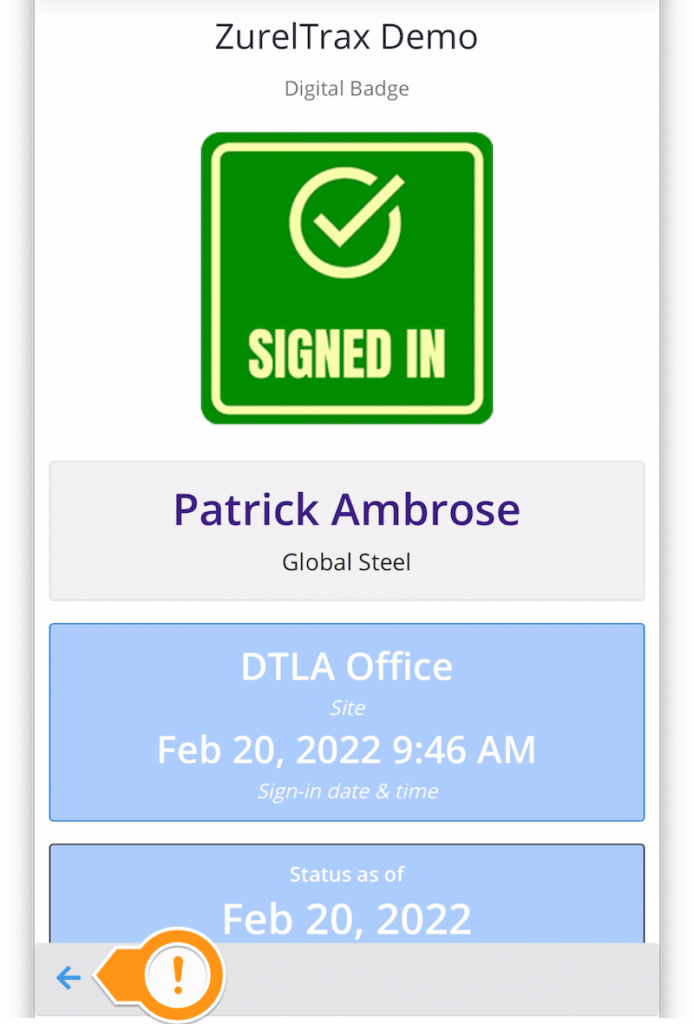
The crew’s digital badge shows the sign-in information. Tap on the left arrow at the bottom of the digital badge to go back to the list of registered crews to sign in more people. Once you are done signing in, you can go back to Our Crew or your digital badge by tapping on the left arrow at the bottom of each screen.