
Inspections Dashboard
Safety Inspector – Inspection Dashboard gives you details about all the job site inspections performed for the selected date range.
You can navigate to this page from the Zurel web app root menu by selecting Safety Inspector > Site Inspections > Dashboard
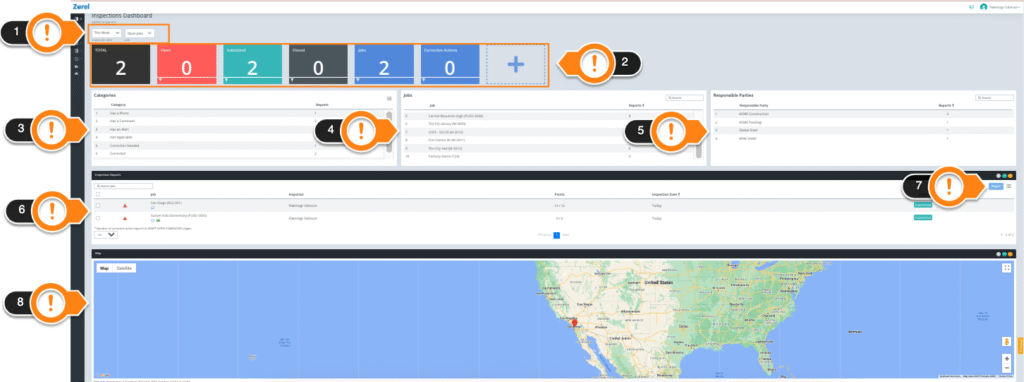
This page has the following items(As labeled on the image above):
1. Filter
This item lets you filter the dashboard according to date and status of jobs.
2. Summary Blocks
This item gives you a summary of the most important information on the dashboard. Clicking on the + summary block lets you add new blocks. You can add the following blocks to your dashboard:
- Total
The total number of job site inspections performed on the selected filter. - Open
The number of reports is in the open stage. - Closed
The number of reports is in the closed stage. - Submitted
The number of reports is in the submitted stage. - Jobs
The number of job site inspection reports was made. - Corrective Actions
The number of corrective actions made. - Has a Photo
The number of reports that have a photo comment. - Has a Comment
The number of reports that have an inspector’s comment. - Has an Alert
The number of reports that have an alert.
3. Categories
This table lists report categories and the number of reports submitted in those categories. It has the following columns:
- Reports
The number of reports submitted in the category. - Category
The names of the inspection report categories.
4. Jobs
This table lists the jobs the inspection reports are. It has the following columns:
- Job
The name of the job site. - Reports
The number of reports from that job.
5. Responsible Party
This table lists the names of the organizations that are responsible for addressing the inspection items. This table has the following columns:
- Responsible Party
The name of the organization responsible for addressing the inspection items. - Reports
The number of reports for which that organization is the responsible party.
6. Inspection Reports
This table lists the inspection reports and their details. It has the following columns:
- Job
The name of the job inspection was done for.
- Inspector
The name of the safety inspector.
- Points
The total points achieved in the inspection.
- Inspection The date of inspection.
- Stage
The stage the inspection report is in.
The checkboxes beside the inspection reports on the table let you select them. Selecting any report activates the export button.
Clicking on the list button next to the export button lets you add or remove columns on the table according to your needs.
Clicking on the reports opens them in the inspection report preview page, which lets you see the details of a report and perform various actions on it.
7. Export
This button lets you download the inspection reports in PDF form.
8. Map
This item shows the location where the inspection was completed and the location of the job site.