
Restoring Deleted Documents in a Project
This guide explains how to restore a deleted document back into a project from the Project’s Recycle Bin in the Bid Packages workspace.
Prerequisites:
- Only users with document editing permissions can restore deleted documents back into the project.
Steps
- Go to the Bid Packages workspace.
- Click Projects in the left navigation.
The Project Dashboard opens, showing all existing projects. - Select the project where you want to restore the document.

- On the right side of the project workspace, click the Project’s Recycle Bin icon as shown in the image above.
A list of deleted documents from that project will be displayed. - Select the document you want to restore.
Selecting the document opens the detailed preview of the deleted document. - In the top-right corner of the deleted document preview screen, click the Actions button.
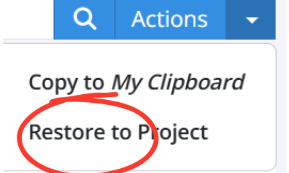
- Select Restore to Project as shown in image above.
- A confirmation screen will appear, asking you to confirm the document restoration.
- Click Yes to proceed and restore the document to the project.
Restored documents are returned to the project with their original content intact, allowing you to resume reviewing and editing them exactly as they were before they were deleted.
💡 Tip:
- Before restoring, review the document preview to ensure you are restoring the correct version, especially if multiple documents were deleted.
BP-039