
SI-Inspection Forms Settings
Safety Inspector – Inspection Forms Settings page lists the available inspection forms and lets you add new ones. These forms can be used to perform equipment Inspections and any other kind of inspections.
You can navigate to this page from the Zurel web app root menu by selecting Settings > Safety Inspector> Inspection Forms.
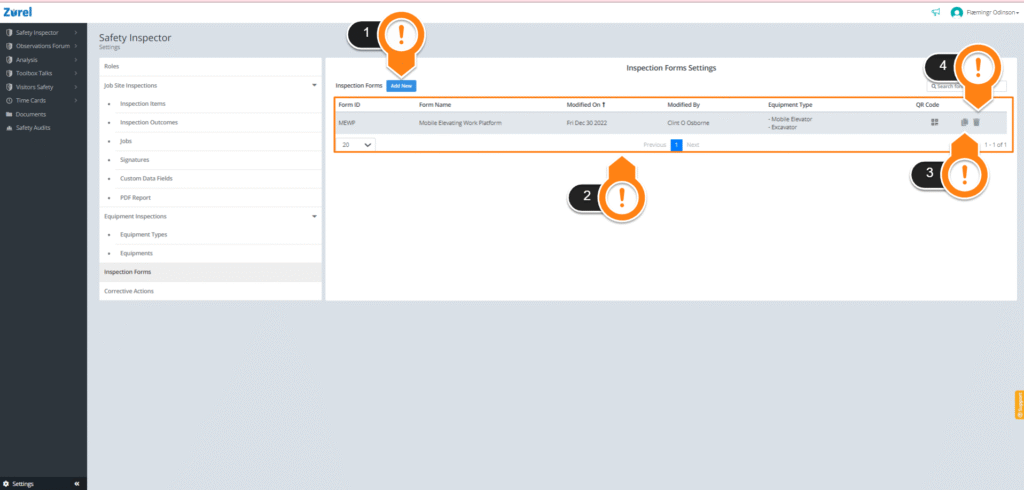
This page has the following items (as labeled above):
1. Add New
This button lets you add new inspection forms to the form list. Clicking on it opens the New Inspection Form page.
2. Form a list
This list displays all the available inspection forms and has the following columns:
- Form ID
The name that lets a user identify the form.
- Form Name
The full name of the form.
- Modified On
The date when the form was last modified.
- Modified By
The name of the user who modified the form.
- Equipment Type
The equipment type the form can be used.
- QR code
The QR code of the form. Clicking on this icon lets you generate a QR code for the form. Users scan the form QR Code from the Zurel mobile app to perform equipment inspections.
3. Copy Icon
This icon lets you make a copy of the inspection form.
4. Delete Icon
The delete icon lets you delete the inspection form permanently.