
SI- Inspection Items Page Guide
Safety Inspector – Inspection Items page allows you to create categories and lists of inspection items. These lists can be used in the safety inspection form.
The Inspection Items page can only be accessed by Admin and Safety Managers.
You can navigate to this page from the Zurel web app root menu by selecting Settings > Safety Inspector>Job Inspection Items > Inspection Items
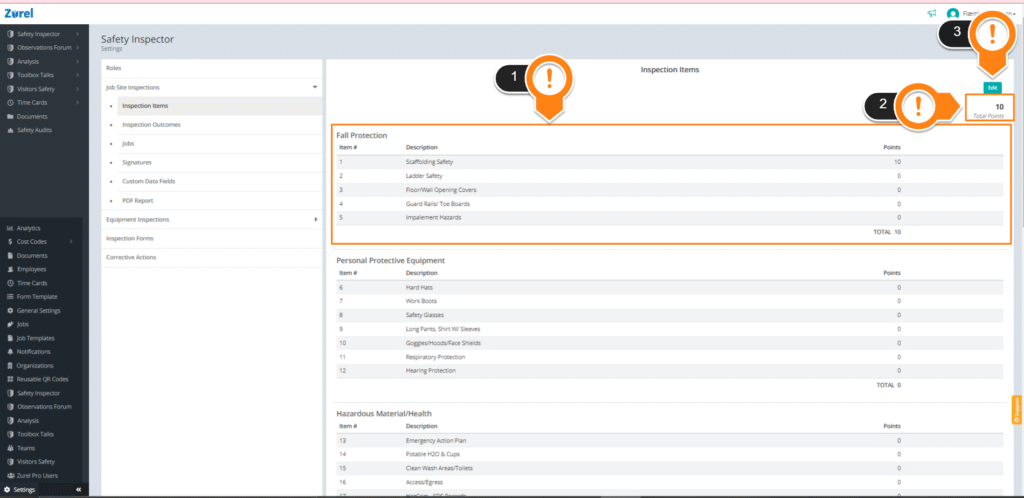
This page has the following objects (As labeled in the image above):
1. Category
A category is a collection of inspection items grouped. Each category will work as a group title and have multiple inspection items in it. Categories are listed on the inspection forms based on the order they are organized on this page. This table has the following objects:
- Item#
The order number of the item. Items are listed in the inspection form according to the same order they have been organized in the table. - Description
The name and description of the item. - Points
The point each inspection item holds. - TOTAL
The total sum of points in that category.
2. Total Points
The Total Points indicator shows the sum of all the points from all categories.
3. Edit
The Edit button lets you edit the Inspection Items page and lets you add more categories and items to the page.
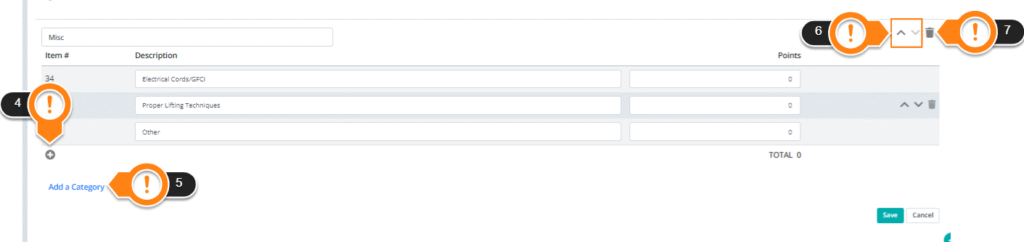
After you click on Edit, the page has the following objects:
4. + (Add button)
The + Add Button under each Category list lets you add more items to the category.
5. Add a Category
The Add a Category button lets you add a new category to this page.
6. Ordering Arrows
The Ordering Arrows let you change the order of the categories and items on the page. The categories and items will appear in the same order in the safety inspection form.
7. Delete Icon
The Delete Icon lets you delete categories and items.