
SI- Inspection outcomes page guide
Safety Inspector – The Inspection Outcomes page lists the outcome of safety inspections.
The Inspection Outcomes page can only be accessed by Admin and Safety Managers.
You can navigate to this page from the Zurel web app root menu by selecting Settings > Safety Inspector>Job Inspection Items > Inspection Outcomes
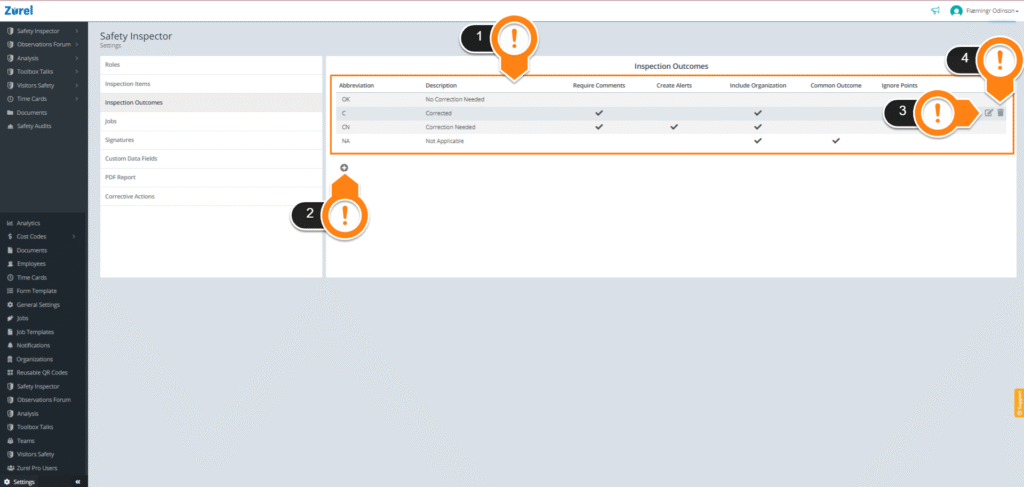
This page has the following items (as labeled above):
1. Outcomes Table
The Outcomes Table lists the details of the inspection outcomes. It has the following columns:
- Abbreviation
The short name of the outcomes. The abbreviations can be assigned different colors based on your needs.
- Description
The full name or the description of the outcome.
- Require Comments
The checks on this column indicate if the user has to provide a comment on the inspection items in the forms when this outcome is selected.
- Create alerts
The checks in this column indicate if the outcomes generate an alert in the forms when selected.
- Include Organization
The checks in this column indicate if the outcomes need to have the responsible party included in the form.
- Common Outcome
The checks in this column indicate if a form has a default outcome. Only one outcome can be selected as the common one if this box is checked. Then, the safety inspector can select this as a default outcome for all of the inspection items in the form at once during inspection.
- Ignore Points
The checks on this column indicate if the points of inspection items with this outcome will be ignored. The points of an inspection item with this outcome won’t be added to the total points in an inspection form.
2. + (Add Outcome)
The + (Add Outcome) button lets you add new outcomes to the Outcomes Table.
3. Edit Icon
The Edit icon lets you edit the outcomes.
4. Delete Button
The Delete icon lets you permanently delete the outcomes.