
Topic Questionnaire Dashboard
Toolbox Talks-Topics Questionnaire Dashboard shows data on completed toolbox talks topic quizzes.
You can navigate to this page by clicking on Toolbox Talks > Topic Questionnaire
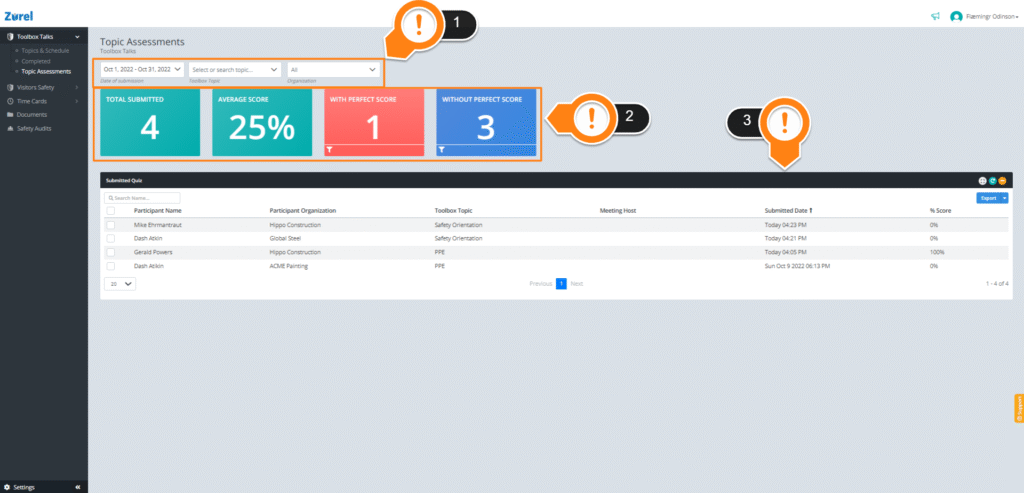
This dashboard contains the following items (in the order labeled above):
1 . Filter
The Filter item lets you filter the whole dashboard according to:
- Date of Submission
This item filters the dashboard to only show quizzes submitted within that date range. - Toolbox Topic
This dropdown lets you filter the dashboard to only show quizzes of the topic you chose. - Organization
This dropdown lets you filter the dashboard to only show attendees that belong to a particular organization.
2. Summary Blocks
The Summary Blocks show you a summary of the most important information in the dashboard. Clicking on some of the blocks lets you filter the dashboard. You can see the following blocks on this page:
- Total Submitted
The total number of quizzes submitted by your attendees. - Average Score
The average of all the scores obtained by the attendees. - With a Perfect Score
The number of total attendees who got a perfect score in one of the topics. - Without a Perfect Score
The number of attendees who failed to achieve a perfect score in one of the topics.
3. Submitted Quiz
The Submitted Quiz table shows data for the topic quizzes that were completed. This table has the following columns:
- Participant Name
The names of the participants who submitted a quiz. - Participant Organization
The name of the organization of the participant. - Toolbox Topic
The name of the Toolbox Topic. - Meeting Host
The name of the meeting host if the quiz was taken following a toolbox talk meeting. - Submitted Date
The date when a quiz was submitted. - %Score
The score obtained in a quiz by an attendee.
Use the checkboxes beside any attendee to select them. Selecting one or multiple attendees lets you perform further actions on them.
Along with these columns, the Submitted Quiz table also has the following items that make it easier for you to navigate this table.

- Search
The Search box lets you manually search for participants by their name.
2. Export
The Export button lets you download PDFs of the selected attendees. The Export button only activates when one or more items on the list are selected.