
SI-Equipments
Safety Inspector – Equipment page lists all the available equipment and lets you add new equipment.
Equipment can only be accessed by Admin and Safety Managers.
You can navigate to this page from the Zurel web app root menu by selecting Settings > Safety Inspector> Equipment Inspections > Equipment.
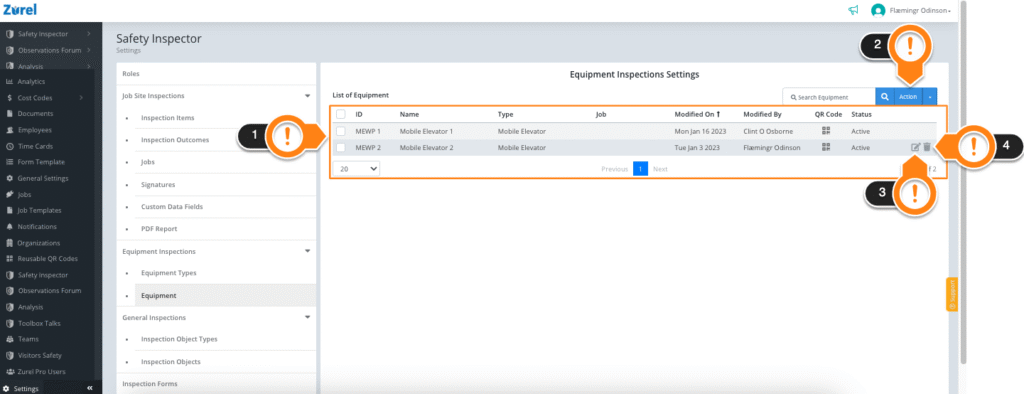
This page has the following items (As labeled above):
1. Equipment List
This item lists all the available equipment. It has the following columns:
- ID
The name is used to identify the equipment. - Name
The full name of the equipment. - Type
The type of equipment.
To learn more about equipment types, see the equipment type page. - Modified On
The last date when equipment details were modified. - Modified By
The name of the user who last modified the equipment details. - QR code
The icon lets you generate a QR code for the equipment. The QR code can be scanned for the inspection report on that equipment. - Status
The status of the equipment. It indicates whether the equipment is active (in use) or suspended.
Clicking the checkboxes beside the equipment lets you select them. You can perform different actions on the selected equipment.
2. Action Button
This button lets you perform the following actions:
- Add New
This option lets you add new equipment to the equipment list.
- Suspend
This option lets you set the status of the equipment as suspended. Suspended equipment can’t be inspected.
- Un-Suspend
This option lets you change the status of suspended equipment to active. Active equipment can be inspected.
3. Edit Button
This button lets you change the details of the equipment in the list.
4. Delete Button
This button lets you permanently remove equipment from the list.