
How to sign in using a site kiosk?
The site where you are visiting may have a kiosk for visitors to sign in. Ask the site manager/superintendent to find out if the site has a kiosk. Keep in mind that, to sign in using the kiosk, you will need to use a security code that will be sent to your mobile number or your e-mail address. If you do not have a method to access the code, please ask the site manager/superintendent for help.
Step 1. Site Kiosk
On the kiosk screen, select the Sign in Here button (A).
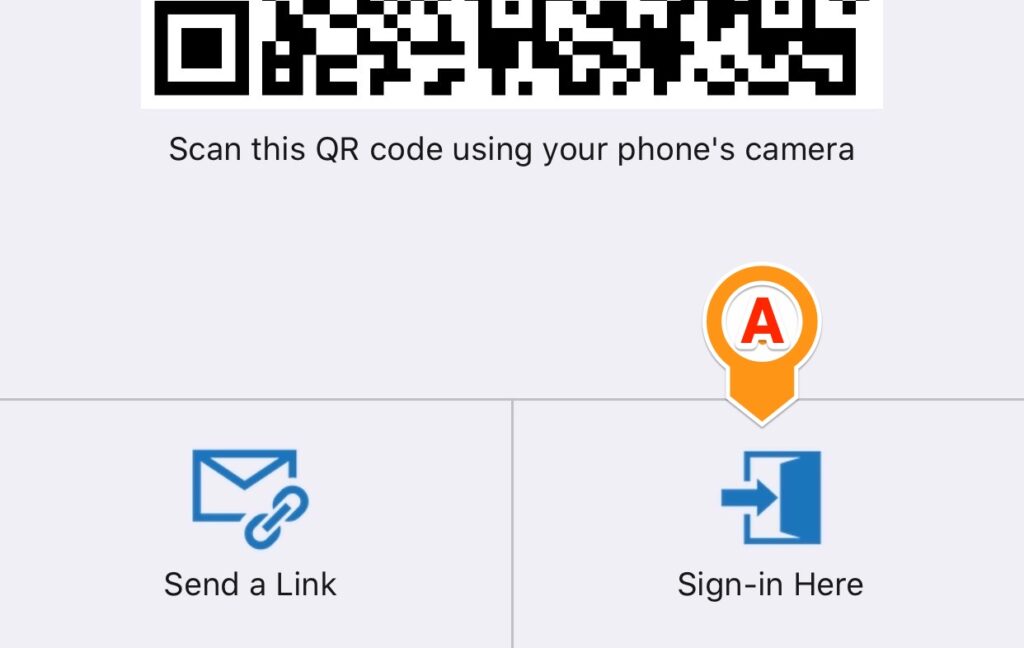
If the site kiosk does not show a Sign in Here button as shown above, select Back (B) on the top left of the screen to get back to the kiosk screen.

Step 2. Look yourself up using your contact information
In the text box (A) for contact information, enter your e-mail address or the 10-digit phone number that was used to register you, and select Next (B). If you can find a matching number/address, we will send a message with a verification code to it.

If you cannot retrieve the message and thus cannot access the code, ask the site manager/personnel for help. If you have not registered before and need to register, please as the site manager/personnel.
Step 3. Look yourself up using your contact information
In the box labeled Code (A), enter the code you received and click the Sign in button (B).
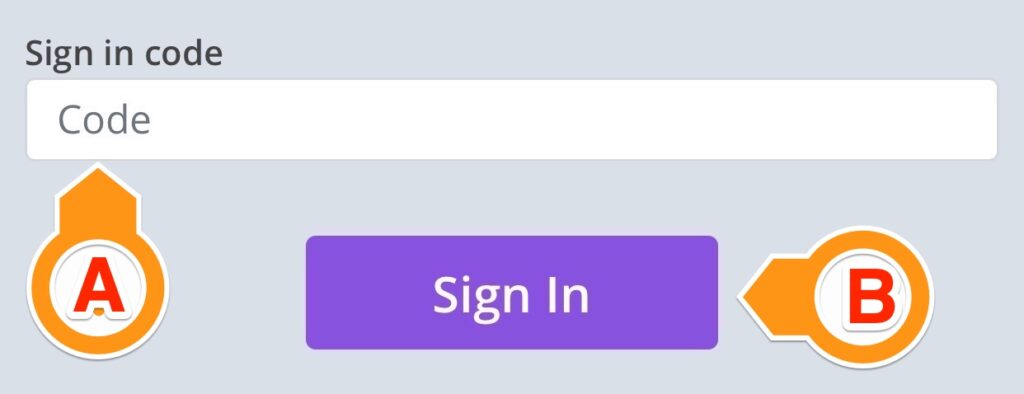
Make sure to enter the code in a timely manner. It has a 5-minute expiration time. If it expires before you use it, you will need to start the process all over again from step 1.
Step 4: Review and select “Sign In.”
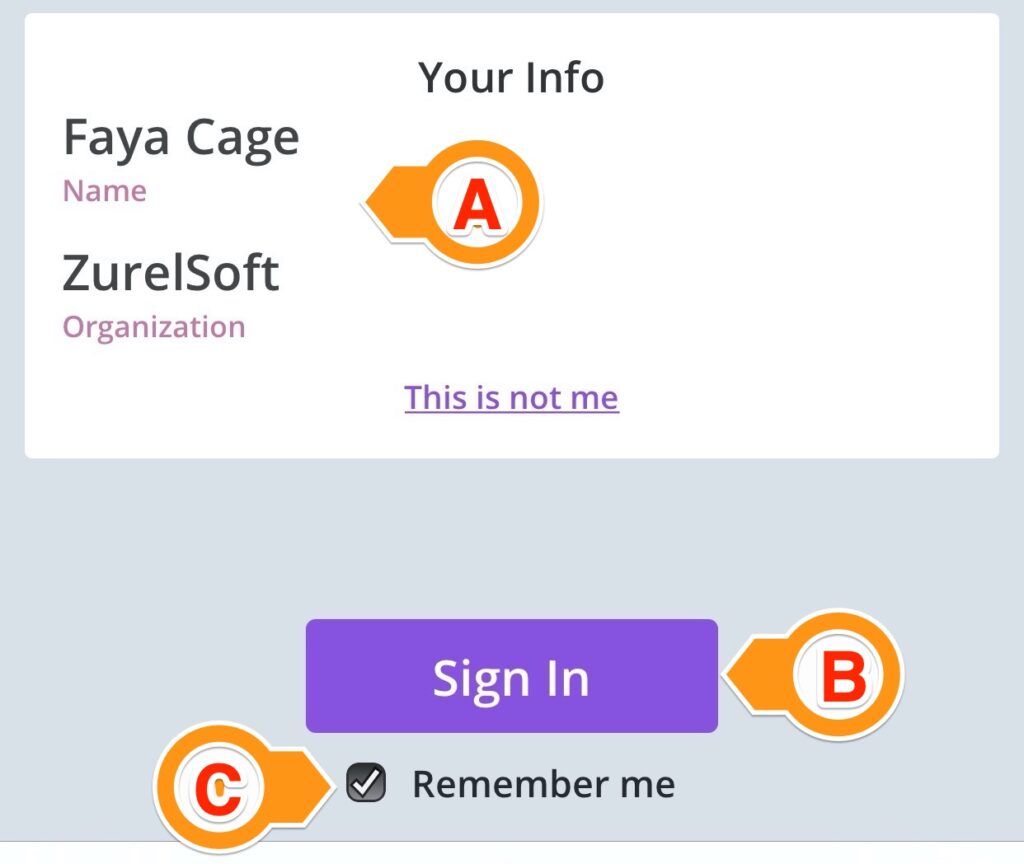
Review your information (A) and click the Sign In button (B) to continue. The checkbox Remember me (C) is automatically selected but but, because the kiosk is a shared device, your information will not be remembered by it once you complete your sign in.
Step 5: Complete, sign, and submit the questionnaire
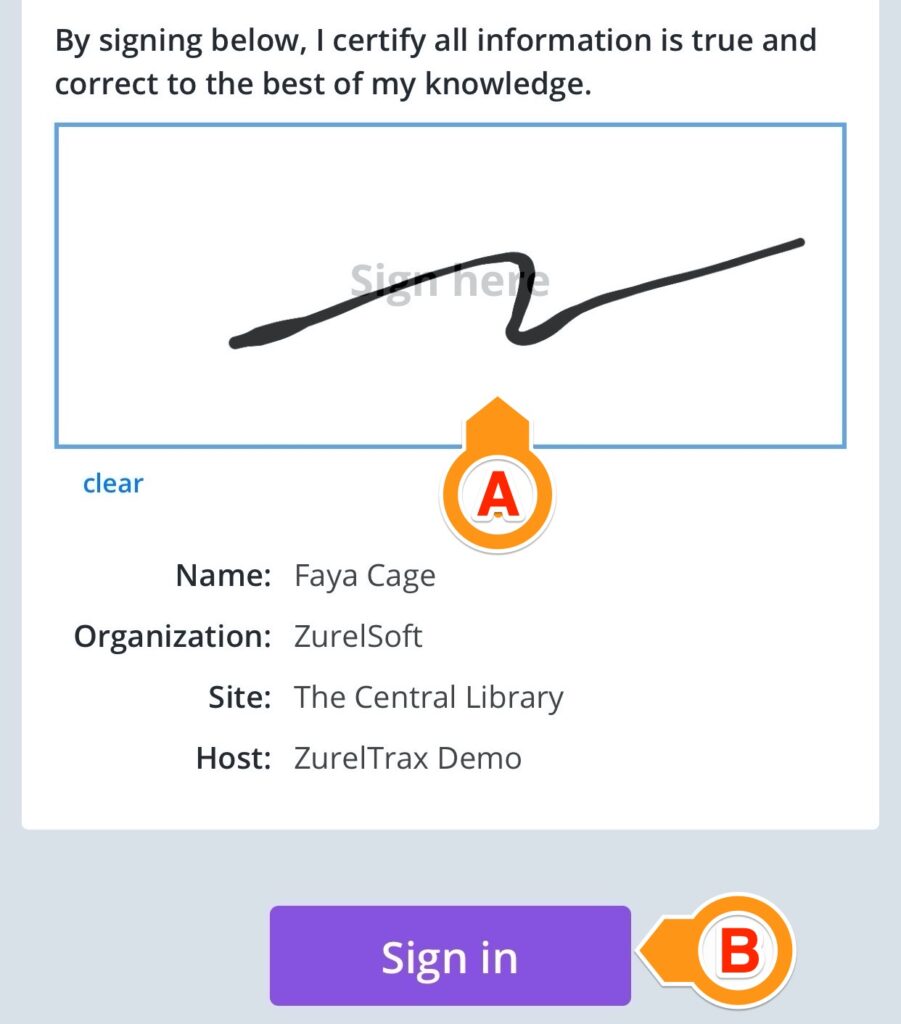
After verifying the information and selecting the Sign In button in step 4, you will be required to complete and sign a questionnaire. The content of the questionnaire depends on your host and the job site. After completing the questionnaire, sign it using your fingertip in the signature area (A) and select Submit (B).
Step 6: Sign-in confirmation
Once you submit your questionnaire, a digital badge will be displayed with your sign-in information. You can learn more about a digital badge here. A larger banner on a colored background (A) shows your sign-in stage. The text just below it (B) shows additional info or instruction, if any.
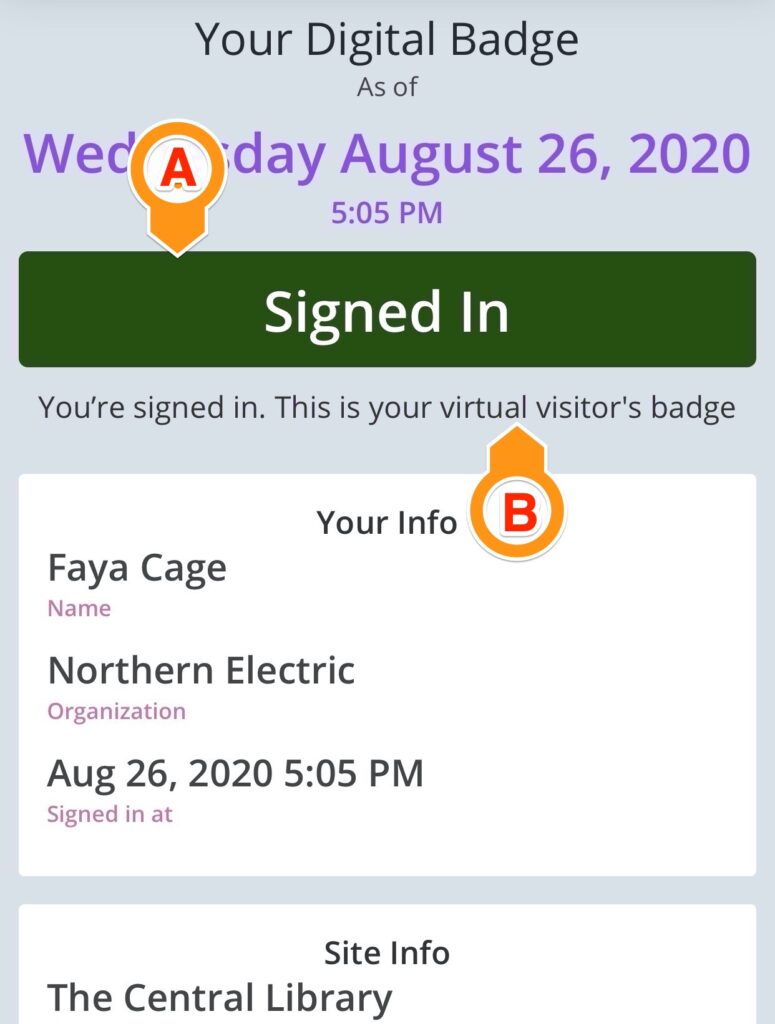
Because you are using a shared device, this screen automatically closes and goes back to the site kiosk screen after a few seconds of activity. However, to maintain the confidentiality of your information, make sure to select the Back button (C) located on the top left before you walk away from the kiosk.
