
Configuring Line Item Number Display with the “Show Full Number” Settings
This guide explains how to control how line item numbers appear throughout your scope documents. By using the Show Full Number setting, you can display either the complete hierarchical numbering (e.g., I.A.1.a) or only the current level number (e.g., a). You can also define the numbering style used at each level of the document structure.
Steps
- Go to the Bid Packages workspace.
- Click the Settings icon in the top-right corner of the screen.
- From the left panel, select Document Format.
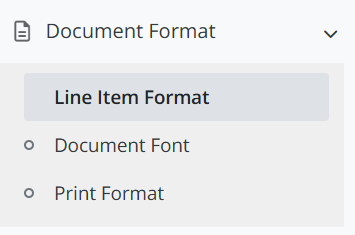
- From the dropdown options, click Line Item Format as shown image above.
The Line Item Format page will open, showing the current numbering structure preview. - Click Edit.
- Configure the numbering settings as needed:
- Enable or disable Show Full Number to control whether the full hierarchical number (e.g., I.A.2.i) is displayed instead of only the current level (e.g., i).
- Use the dropdown menus beside each level to choose the numbering style (e.g., I, A, 1, a, i).
- Click Save to apply your changes.
The updated numbering format will be applied to all newly created documents.
💡 Tip:
- Use full hierarchical numbering for complex scopes with multiple nested levels to improve clarity and reference accuracy.
BP-061