
Creating a Scope Template by converting your existing PDFs
This guide explains how to import an external PDF document into Scope Maker and convert it into a reusable Scope Template. It walks you through importing the PDF, processing the imported document, and creating a new template that can be used for future projects.
Step 1: Import Your PDF To Scope Maker
- Go to the Bid Packages workspace.
- In the left navigation, click Library → Imported Documents.
The Imported Documents list opens. - Click the Actions button.
- Select Import Documents.
- In the import form:
- Choose a Job (Optional)
- Select Tags (Optional)
- Select a Trade (Optional)
- Click Select pdf file to import and upload your PDF(s).
- Click Import.
- A confirmation message appears: Document Import Started.
- Click Okay.
The PDF will begin processing and the document will display Import in progress… in the list; once processing is complete, it will become available in the Imported Docs list.
Step 2: Create a Scope Template from the Imported PDF
- Go to the Bid Packages workspace.
- In the left navigation, click Library → Imported Docs.
The Imported Documents list opens. The most recently imported document appears at the top of the list. - Click the imported document that you want to convert into a template.
The Document Preview opens.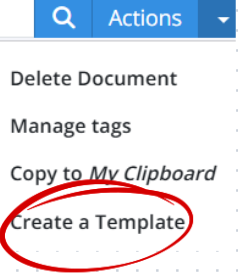
- In the top-right corner, click the blue Actions button as shown in the image above.
- Select Create a Template
- In the Creating Template window, enter a Template Name.
- Click Continue.
- Your new Scope Template is created in DRAFT mode.
This allows you to review and edit it. When ready, publish it to make it available for future use.
💡 Tips
- Use clear and consistent naming when entering the Template Name so it is easy to find later.
- Review the converted content carefully to ensure headings, numbering, and scope items imported correctly.
BP-057