
Understanding Template States
This guide explains how to read template status and what you can do from the Actions menu when working with templates in Bid Packages.
Prerequisites
- Only Admins and Managers can use all template Actions.
Steps
- Go to the Bid Packages workspace.
- In the left menu, open Library → Templates.
The Templates dashboard opens with three tabs as shown image below: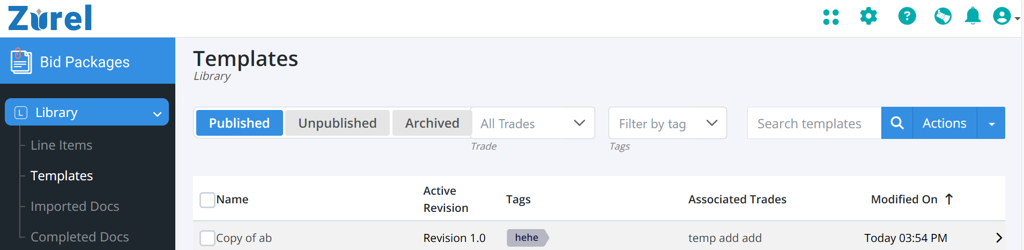
- Published
- Unpublished
- Archived
Each tab shows templates currently in that state.
Understanding each Template State
1) Published (Ready to use)
A Published template is approved and available for day-to-day use. Think of this as the “live” version that users can rely on.
When a template is Published, users can:
- Create new bid package documents using that template
- Copy the template to clipboards (for reuse and quick access)
2) Unpublished (Draft / In progress)
An Unpublished template is a work-in-progress. It can be edited and refined, but it is not available yet for general use.
When a template is Unpublished:
- Users with permission can edit the template
- Users cannot create new bid package documents from it
- Users cannot copy it to clipboards
Why this matters
Keeping a template Unpublished prevents confusion and inconsistencies—users won’t accidentally generate documents from a template that’s mid-update.
3) Archived (Inactive / Retired)
An Archived template is retired and no longer in active use. It remains listed for reference and record-keeping, but it is functionally “turned off.”
When a template is Archived:
- It still appears in the template list under the Archived tab
- It is not editable
- It is not usable for:
- creating new documents
- copying to clipboards
- Its content can’t be opened/viewed. If you need to use it again, you can restore it by clicking Unarchive.
Want to learn what actions are available in each state and how they work? See Using Template Actions.
💡 Tip:
- Use Unpublished while building or updating a template, and change it to Published only when it’s ready for general use.
BP-048