
Observation Report preview
Observation Forum- Report Preview page previews the details of an observation report and lets you:
- Send the report to other users
- Return it to the observer for more correction.
- Change the status of a report
- Add requester’s remarks
- Delete the observation or corrective actions of the observation
This page can be accessed by clicking on any observation report on the Observations Dashboard.
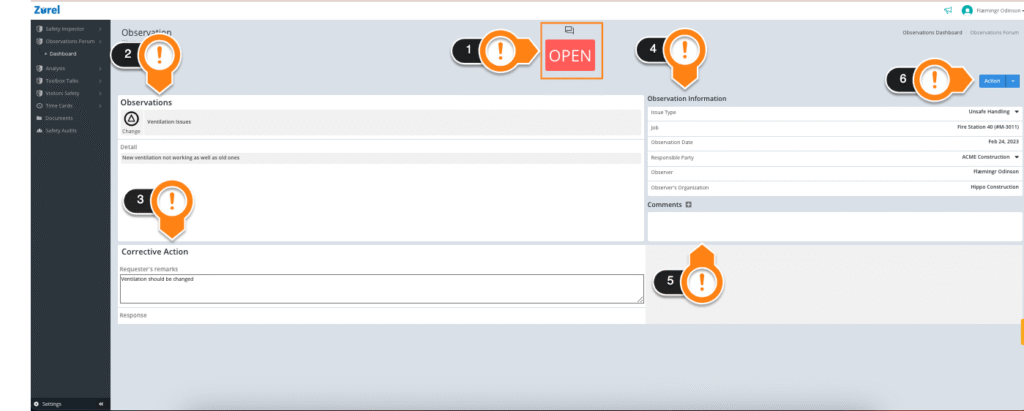
This page has the following items (as labeled above):
1. Stage
This item lets you know the stage the report is in. A report can be in the open, closed, or submitted stage.
- Open
A report in the open stage can be edited by the observer. - Submitted
A report in the submitted stage can be closed, reopened, and deleted by an observations manager. - Closed
A report in the closed stage can’t be edited or reopened.
The icons above the Stage denote shared, unshared, and replied.
2. Observations
This item displays the type of observation, observation summary, and detailed observation notes.
3. Corrective Action
This item displays the corrective action requested by the observer and the response of the responsible parties to that request.
4. Observation Information
This item lists information related to the observation:
- Issue Type
The name of the issue type. - Job
The job is an observation. - Observation Date
The date when the observation was made. - Responsible Party
The name of the party responsible for this observation. - Observer’s Organization
The name of the observer’s organization. - Observer
The name of the observer.
5. Comment
This item displays comments added to the observation report. You can add comments in this section if the form is open.
6. Action
This button lets you perform various actions on the reports.
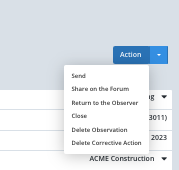
It has the following options in an open report:
- Send
This option opens the Send this Correction Request window, where you can send a correction request to a recipient via email or from a pre-existing list of Zurel users. - Share on the Forum
This option lets you share the report in the observation forum. You can also unshare a shared form. Share is the only option that is active in all stages of a report. - Return to Observer
This option lets an observations manager resend a submitted report to the observer for corrections. When a manager resends an open report, it goes back into a draft report. - Close
This option lets you close the report. A closed report can’t be reopened or changed. - Delete Observation
This option lets you delete an observation report permanently. - Delete Corrective Action
This option lets you delete the corrective action of the report.
Every stage of a report has different actions that can be done on it.