
Running Document Automation for Multiple Trade Workspaces at Once
Learn how to run automation on multiple documents across selected Trade Workspaces within a project at once, automatically updating their content based on the automation scripts in line items and the associated templates of each trade, ensuring consistency and saving time.
Steps
- Go to the Bid Packages workspace.
- In the left menu, click Projects.
You will see a list of all projects. - Select a project from the list to open its Project Workspace.
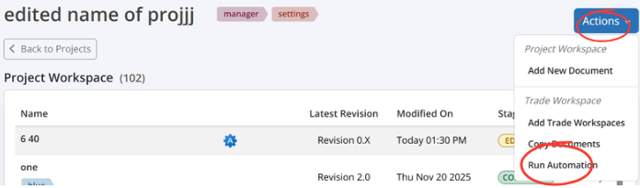
- In the top-right corner of the project page, click the Actions button as shown image above.
- From the dropdown menu, select Run Automation.
This opens the Run Automation pop-up. - In the pop-up, you will see a list of Trade Workspaces available in that project.
- Select one or multiple trade workspaces by checking the boxes next to their names.
- After selecting the workspaces, click Run.
- Automation will be applied to all the documents(which has automation script) of the selected trade workspaces, and the process will finish when all automation-driven content has been inserted into every document that uses an automation script.
💡 Tips
- Run automation after adding new trades or updating templates to ensure all related documents stay accurate and aligned.
- You can run automation for one trade at a time or choose multiple—ideal for large projects with several trade workspaces.
- If automation doesn’t run as expected, verify that the templates attached to your trade workspaces contain valid automation scripts.
BP-034