
Setting Up Template Automation Guides
Automation Guides let template creators set up simple rules that automatically add content to a document. By selecting what action should happen (such as adding a new line item or a sub-item) and choosing matching tags, the system knows which content to insert and where to place it when automation is run on the document that is created from those templates.
Prerequisites
- BP Admins/Managers can create and manage automation guides.
Steps
- Go to the Bid Packages workspace.
- Navigate to Library → Templates and select the template to which you want to add automaton guides.
- Click the line item where you want to add an automation script. The action menu will appear.
- If the menu is expanded, click Automation Script as shown in the image below.
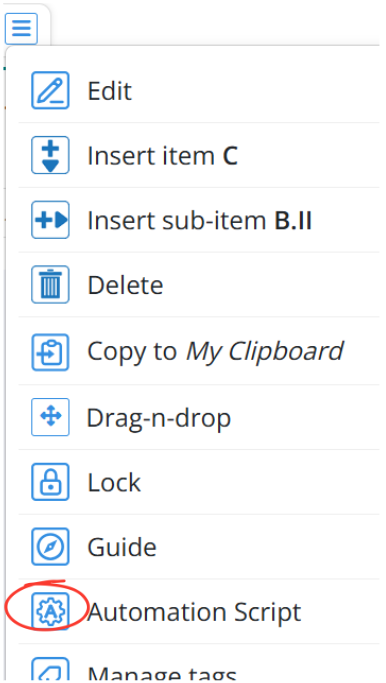
- If the menu is collapsed, click the Automation Script icon as shown in the image below.

- If the menu is expanded, click Automation Script as shown in the image below.
- In the Automation Script window, open the Action dropdown and select either:
- Insert Item —Adds a new line item at the same level in the document, including all its sub-items.
- Insert Sub-item —Adds a nested item under the selected line item. Only the sub-item content is inserted, without duplicating the parent line item.
- Click Select Tags to open the tag panel.
- Scroll or search for tags and select one or multiple tags.
- Click Add to confirm your selections.
- If you need a new tag:
- Click Create new tags
- Enter the name, choose a color, and add an optional note
- Click Add
- Review your selected tags in the Automation Script form.
Tags serve as matching attributes that the system uses to locate the correct source content and insert it automatically when the automation runs. - Use Edit Tags if you want to modify or remove any.
- Click Save to create the automation script for the selected line item.
Deleting an Automation Script
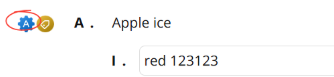
- Select the line item and open the Automation Script by clicking the automation guide icon as shown in image above.
- Click Delete Automation, confirm Yes, and click Save.
- The automation will be removed from that line item and will no longer trigger.
💡Tips
- Use Insert Sub-item when you want structured or nested content under a main line item.
- Keep tags consistent—automation triggers only when tag names match exactly.
- Review existing tags before creating new ones to avoid duplicates.
BP-033