
Running Document Automation on Selected Trade Documents
Learn how to run automation on selected documents within a Trade Workspace to automatically update their content using line-item automation scripts and the associated trade templates as the source.
Steps
- Go to the Bid Packages workspace.
- In the left menu, click Projects.
You will see a list of all projects. - Select a project to open its Project Workspace.
- Scroll down to the Trade Workspaces section.
You will see all trade workspaces documents. - Select the Trade Workspace where you want to run automation.
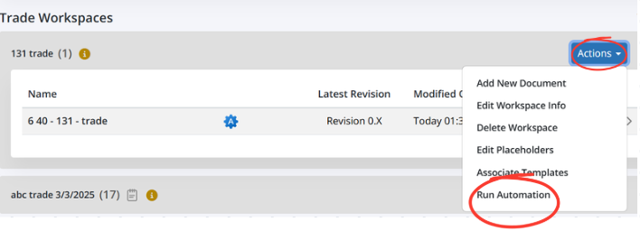
- On the right side of the trade row, click the Actions button as shown in the image above.
- From the dropdown, select Run Automation.
- A Run Automation pop-up will appear, showing the list of documents of that trade where automation can be run.
- Use Search or Filter by tags if needed.
- Select the document(s) you want to include.
- Click Next.
- The next screen will show all templates associated with that trade.
- Use Filter by tags and the Search bar to quickly narrow the list and find the templates you need.
- Select one or multiple templates you want to apply.
- The selected templates act as the source for automation, where the system identifies matching automation tags and automatically inserts the corresponding content into the target documents.
- Click Run.
- Automation will be applied only to the selected documents within the single trade workspace, and the process will finish once all automation-driven content has been inserted into each document that contains an automation script.
- The system will begin processing.
- The document will temporarily show a Processing… status.
- Click Refresh to see the latest updates once it completes.
💡Tips
- Use tag filters to quickly narrow down templates when a trade has many associated items.
- If the document stays in Processing… for longer than expected, refresh the page to update its status.
BP-035