
Safety Toolbox Talk Topics & Schedule
You can get this page at Toolbox Talks > Topic & Schedule
This page lists all of the topics that are currently available. It also allows you to schedule those topics on your toolbox talk calendar and to review or edit those that have already been scheduled.
The topics that are scheduled appear on your and your team’s mobile app on the days of the schedule. If you want a topic to be always available, you can do so by selecting Always available when scheduling it.
Page Overview
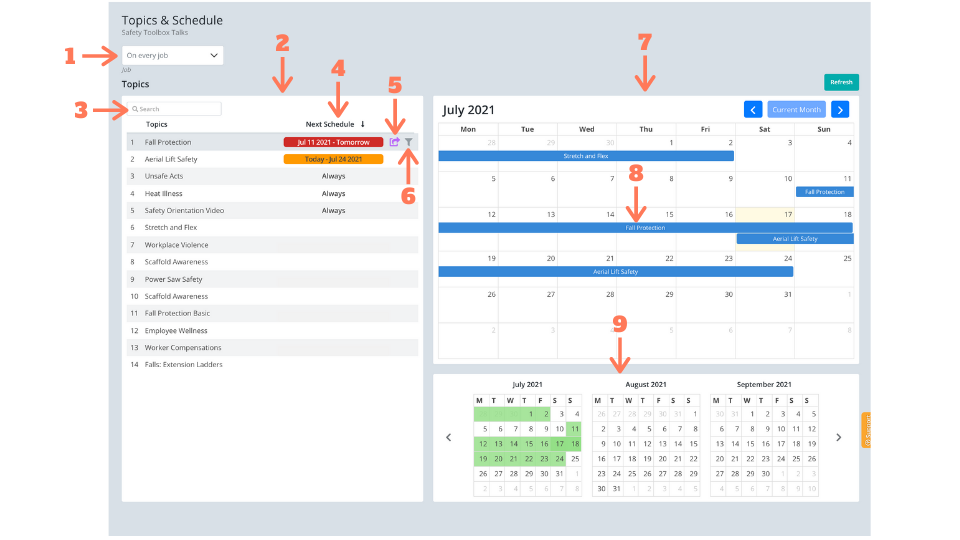
This page consists of the following elements:
- Job Filter
You can create a separate toolbox calendar for each of your jobs. This filter lets you select one of the jobs. - Topics List
This lists all the topics available to you. The topics listed here are independent of the selection on the job filter. Clicking on each row on this list launches the Topic Preview window. - Search Box
The search box allows you to search for the topics on the list. - Next Schedule
The next Schedule column of this list shows the start and end dates of the next scheduled date of the topic for the job selected in the job filter (1). If there are multiple schedules of the same topic, it shows the earlier schedule.
If the topic is scheduled for “Always” (See below), this column shows Always. - Share Icon
When you hover the mouse over the topic, the share icon appears. Clicking the icon launches the Send the Topic window. See below for more information on using this interface to send the topic. - Filter Icon
When you hover the mouse over the topic, a filter icon appears. Clicking the icon filters the calendars to show the entries only for the topic. - Monthly Calendar
The monthly calendar shows the toolbox talk scheduled for the selected month. By default, the current month is selected. You can use the left or right arrows on the calendar to navigate to other months. - Calendar Entry
For each scheduled topic, the monthly calendar shows a calendar bar spanning the days of the schedule. Clicking the bar shows the details of the schedule and allows you to either edit or delete the schedule. - Quarterly Calendar
The quarterly calendar shows the toolbox talk schedule for the selected quarterly period. By default, the current quarter is selected. You can use the left or right arrows on the calendar to navigate to a different quarter. On this calendar, the days when a topic is scheduled are shaded, with darker shades representing a larger number of topics. Clicking on the shaded days lists the topics scheduled. Clicking the header (Month & Year) of each month on this calendar loads the Monthly Calendar with the selected month.
Send the Topic
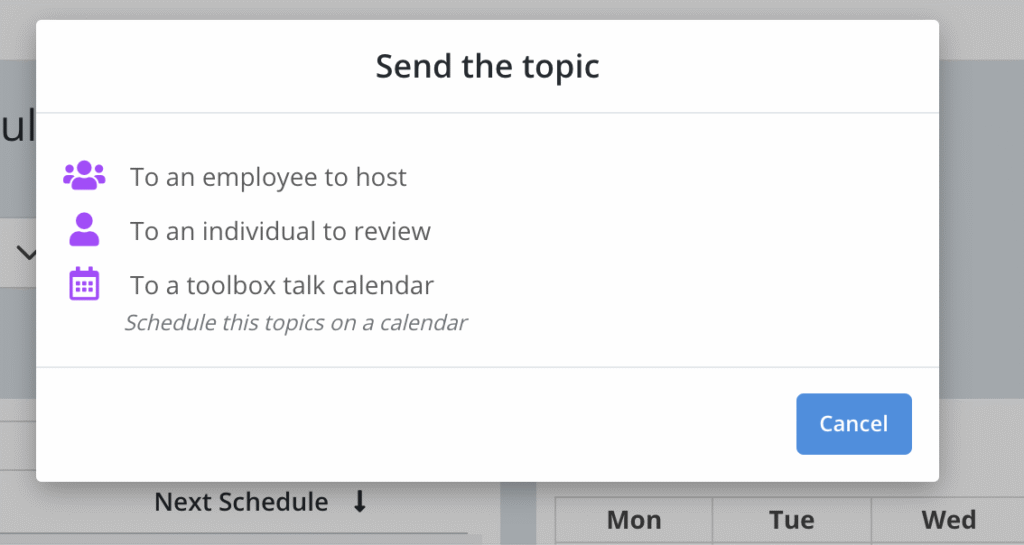
This interface launches when the share icon (5) is clicked. It has the following elements.
- To an employee to host
Select this to send the topic to a user of the Zurel app to host a toolbox talk meeting. - To an individual to review
Select this to send the topic to an individual to review the toolbox topic. You may send the topic to either a Zurel app user or anyone with an email address or a mobile phone. - To a toolbox talk calendar
Select this to add the topic to a calendar. Selecting it launches the Schedule window.
Schedule
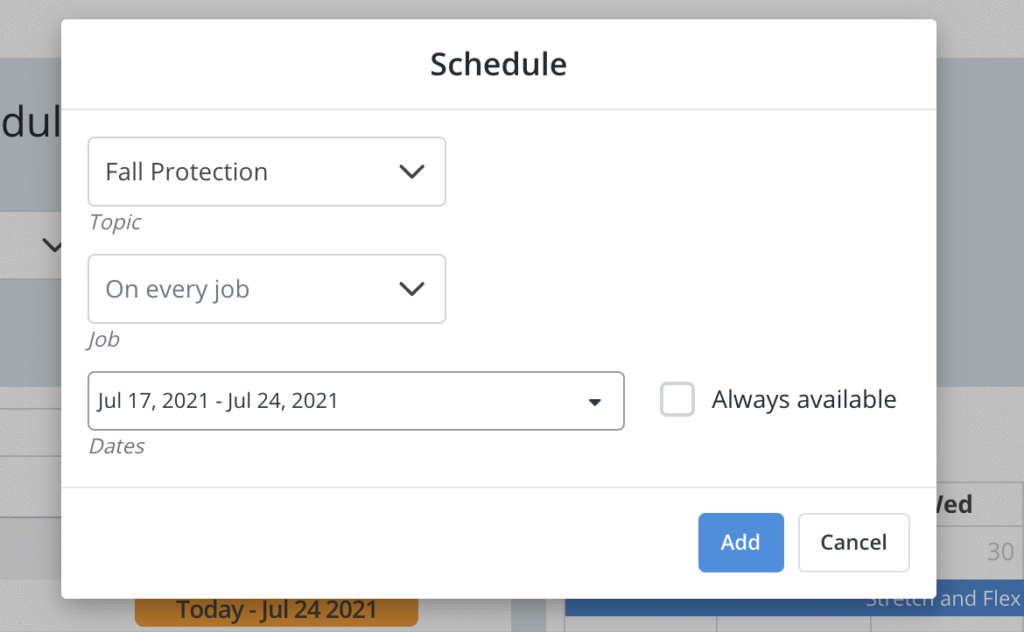
This interface is used to add a topic to a calendar. It is launched when you select To a toolbox talk calendar on the Send the Topic window. It consists of the following elements.
-
- Topic
Use this dropdown to select your topic. - Job
Use this dropdown to select the job. By default, it selects the job that was selected on the filter (item 1 in Page Overview). - Dates
Use this to select the range of dates for your schedule. By default, one week starting with today is selected. This is blank if Always available is selected. - Always available
Select this checkbox if you want to make the topic always available.
- Topic
Topic Preview
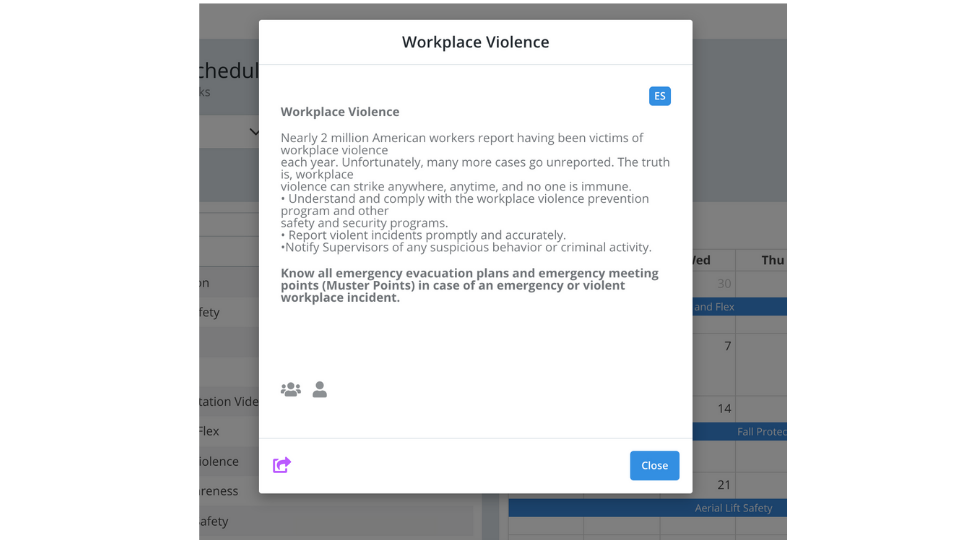
This window launches when you click any topic on the topic table. It shows the preview of the topic content. It also includes a share button, clicking which launches the Send the Topic window.