
SI-Corrective Actions
Safety Inspector – Corrective Action page lets you add restrictions and additional settings to corrective action reports.
Only admins can access the corrective actions page.
You can navigate to this page from the Zurel web app root menu by selecting Settings > Safety Inspector> Corrective Actions.
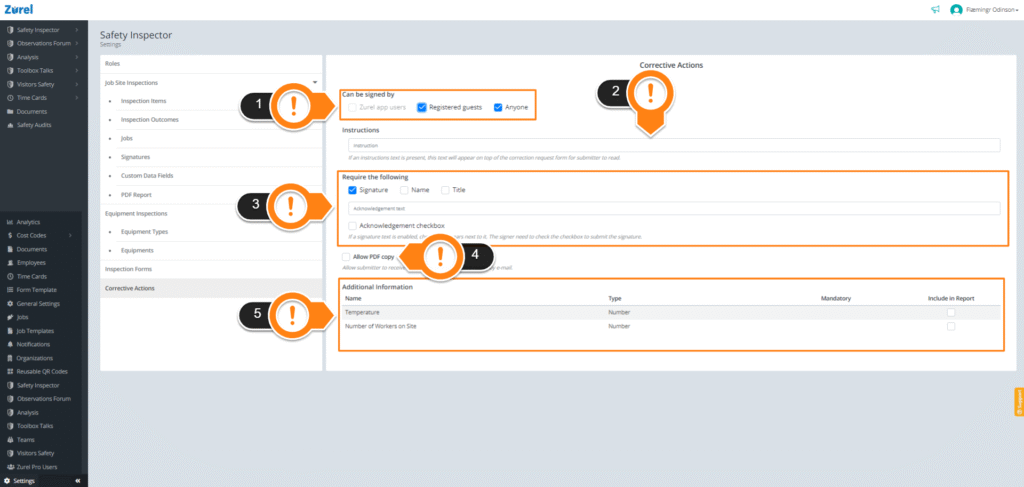
This page has the following items (as labeled above):
1. Can be Signed by
This item lets you decide who gets to sign the corrective actions report.
- Zurel app users
Checking this box lets Zurel app users sign the corrective actions reports. - Registered Guest
Checking this box lets guests who are registered with the Zurel platform sign the corrective actions reports. - Anyone
Checking this box lets anyone with a link to sign the corrective actions reports.
2. Instructions
This box lets you display your text as instructions in the corrective actions report.
3. Require the Following
This item lets you decide what will be mandatory in your report. Users can’t submit the report without fulfilling the requirements.
- Signature
Checking this box lets you make a signature mandatory in the corrective actions report. - Name
Checking this box lets you make entering the name of the report submitter mandatory. - Title
Checking this box lets you make entering the job title of the report submitter mandatory. - Acknowledgement Text
Typing text into this field lets you display an acknowledgement in the report that you might want the submitter to read. - Acknowledgement Checkbox
Checking this box lets you display a checkbox above the acknowledgement text in the report. It needs to be checked before submitting the report.
4. Allow PDF copy
Checking this box lets you allow the submitter to receive a PDF copy of the report they submitted via email.
5. Additional Information
This item lists the additional information that can be added to the corrective action report. It has the following columns:
- Name
The name of the additional information. - Type
The type of the information field. It can be a number field, text information, or just yes/no information.
To learn more about the types of information, see the Custom Data Fields page guide. - Mandatory
The checks in this column indicate if filling in the information is mandatory in the report. - Include in Report
The checkboxes in this column let you decide which additional information (custom data fields) present in the inspection report can be displayed in the Corrective Action Report.