
Viewing existing comments on a Document
View all comments linked to a specific document in Job Docs, using the mobile app or the desktop web app.
- Open the Job Docs dashboard.
- Select the document whose comments you want to view.
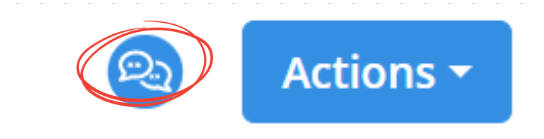
- Click the blue messaging icon beside the Actions button (see image above).
- After selecting the messaging icon, you will see all existing comments for that document.
You can tap any comment to view its conversation and replies. - Alternatively, you can click the Actions button and select Comment to see the existing comments.
- Open the Job Docs dashboard from the main menu.
- Tap the document for which you want to see comments.
- Tap the blue Actions button at the bottom.
- Tap Comment.
- After tapping Comment, all existing comments for that document will be displayed.
You can tap any comment to view its detail conversation and replies.
⚠️ Note
- Comments are shown in chronological order, so the newest appear at the top.
- All comments can be viewed by any user who has access to the document.
JD-010