
Setting up default font for the documents
The default font is the standard font type and size used across all new documents you create. It helps maintain consistency in formatting. You can customize it according to your preferences, and all future documents will follow this new default style unless you change it manually.
Who Can Edit the Default Font
Only users with Admin permissions can add or edit the Default font.
How to Change the Default Font
- In the Bid Package, click the Settings icon ⚙️ at the top-right.
- From the left-hand menu, select Document Format.
- Under the Default Font section, click Edit. You’ll see two options:
- Font Type (e.g., Helvetica)
- Font Size (px) (e.g., 15)
- Make your changes and click Save.
Note: This sets the global font. All new documents will use this font and size; existing documents won’t be affected.
To Change Font for a Specific Document
If you are editing a document and want to apply a different font just to that specific document:
- Click the document information icon (ℹ️) from the right panel in the document workspace.
- Under the Document Format section, you’ll see font options like this:
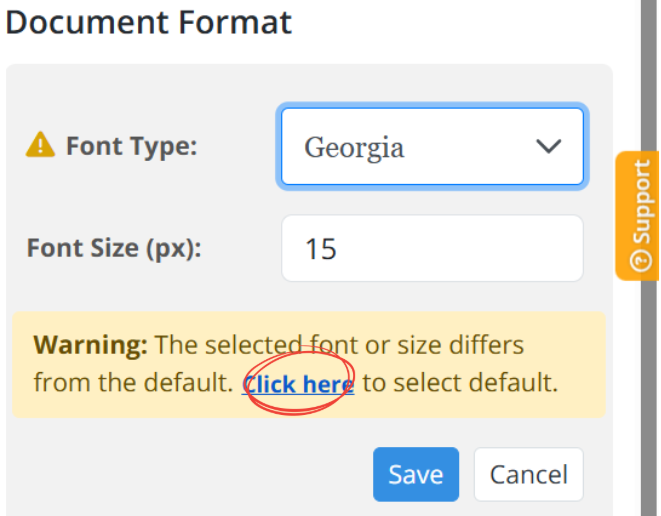
- Choose your preferred Font Type and Font Size (px).
- Click Save to apply.
- If you want to revert to the original default font, click the blue “Click here” link inside the yellow warning shown in the image above (circled in red).
BP-013